Best Ways to Share Large Files Online In 2026
Compare the best tools for sharing large files online, from Google Drive and WeTransfer to Filemail, and see which option works best as file sizes grow.

What is large file sharing?
Large file sharing is the process of sending and receiving files that exceed standard limits, especially when transferring files online. Email typically supports only 10–25MB attachments, so larger files such as videos, project folders, or datasets require dedicated file transfer or file sharing tools.
This includes:
- sending large video files
- sharing files or folders for work
- delivering files to an intended recipient
The key distinction is between casual file sharing and delivery-focused file transfer, where reliability matters.
Why most file sharing methods fail for large files
Common file sharing methods fail as file size increases.
- Email attachment limits (10–25MB)
Prevent sending large files via email, even for short videos. - Free tier limits (2–5GB maximum file size)
Restrict the ability to send large video files or project folders. - Storage-based workflows
Require upload → store → share, adding friction for one-time transfers. - Access and delivery constraints
Some tools require accounts, limit access to the files, or expire shared links.
These issues become critical when files are:
- work-related
- client-facing
- time-sensitive

What should you look for in a file transfer tool?
When choosing how to share large files or transfer files online:
- Maximum file size
Must support the file you need to send. - File size limits (free vs paid plans)
Many tools restrict file sharing without upgrading. - Delivery method
Shared link, shareable links via email address, or direct transfer. - Security and access
Password protect options and control over who can access the files. - Ease of sending and receiving large files
The intended recipient should access the files without friction.
What is the best way to transfer large files online?
For sending and receiving large files where file size limits and reliability matter, a dedicated file transfer service like Filemail is used, as it removes maximum file size restrictions and delivers files more reliably than standard file sharing tools.
Comparison of file sharing and file transfer tools
| Tool | Max File Size | Delivery Type | Best For | Key Limitation | When It Breaks |
|---|---|---|---|---|---|
| Google Drive | Up to storage limit (15GB free) | Storage + share | File sharing and collaboration | Storage-based workflow | Inefficient for sending large files one-time |
| Dropbox | Varies by plan | Storage + share | Team file sharing | Transfer limits | Struggles with large external file transfer |
| WeTransfer | 2GB (free) | File transfer | Casual file sharing | Strict file size limit | Cannot send large video files over 2GB |
| OneDrive | Storage-dependent | Storage + share | Microsoft workflows | Not optimized for transfer | Slows down large file delivery |
| Filemail | Very large (GB–TB depending on plan) | Direct file transfer | Large file delivery | Depends on plan for limits | Not necessary for small files |
Tool breakdown

Google Drive – Best for file sharing and collaboration
Google Drive is used to share files and folders when ongoing access is required. Files are uploaded and shared via a shared link.
Key Features:
- Shareable links
- File and folder access control
- Cross-device access, including mobile app
Limitations:
- Storage limits on free plans
- Requires upload before sharing
Impact of limitations:
Becomes inefficient when sending large files for one-time delivery, especially when the recipient does not need ongoing access.

Dropbox – Best for shared file access
Dropbox is used for file sharing within teams, especially when managing files across devices.
Key Features:
- Shared folders
- File syncing
- Mobile app access
Limitations:
- Transfer size limits
- Paid plans required for larger files
Impact of limitations:
Becomes restrictive when sending large files externally, particularly for recipients who only need temporary access.
WeTransfer – Best for quick file transfer
WeTransfer is used to send files quickly via a shared link or email address without requiring an account.
Key Features:
- Send files via email address
- Simple file transfer workflow
- No account required
Limitations:
- 2GB file size limit
- File expiration
Impact of limitations:
Prevents sending large video files or large folders once files exceed the maximum file size.

OneDrive – Best for Microsoft file sharing
OneDrive is used for file sharing within Microsoft environments, especially for documents and shared workflows.
Key Features:
- Integration with Microsoft tools
- File access control
- Cloud storage
Limitations:
- Storage-first workflow
- Not optimized for file transfer
Impact of limitations:
Slows down large file delivery, particularly when sending files to an external intended recipient.

Filemail – Best for sending and receiving large files
Filemail is used when sending large files without file size limits, especially for delivery-critical scenarios. It is built for direct file transfer rather than storage.
Key Features:
- Supports very large file sizes
- Direct transfer via shared link
- No storage dependency
- Password protect options for access control
Limitations:
- Less necessary for small or casual file sharing
Impact of limitations:
For small files, simpler tools are sufficient. For large video files, project folders, or delivery-critical files, Filemail removes size constraints and simplifies access for the intended recipient.
Which file transfer method should you use?
Casual file sharing
- Small files → use Google Drive or Dropbox
- Quick transfers → use WeTransfer
Professional file transfer (important files)
- Large files → use dedicated file transfer tools
- Files exceeding limits → capped tools fail
- Reliable delivery → Filemail is used
These include:
- client files
- large video files
- project folders
Failure leads to delays, rework, or missed delivery.
Collaboration and file access
- Ongoing work → use storage-based tools
- Shared folders → Google Drive, Dropbox, OneDrive
Best tools by use case
- Casual file sharing → WeTransfer, Google Drive
- Collaboration → Google Drive, Dropbox
- Large file transfer → Filemail
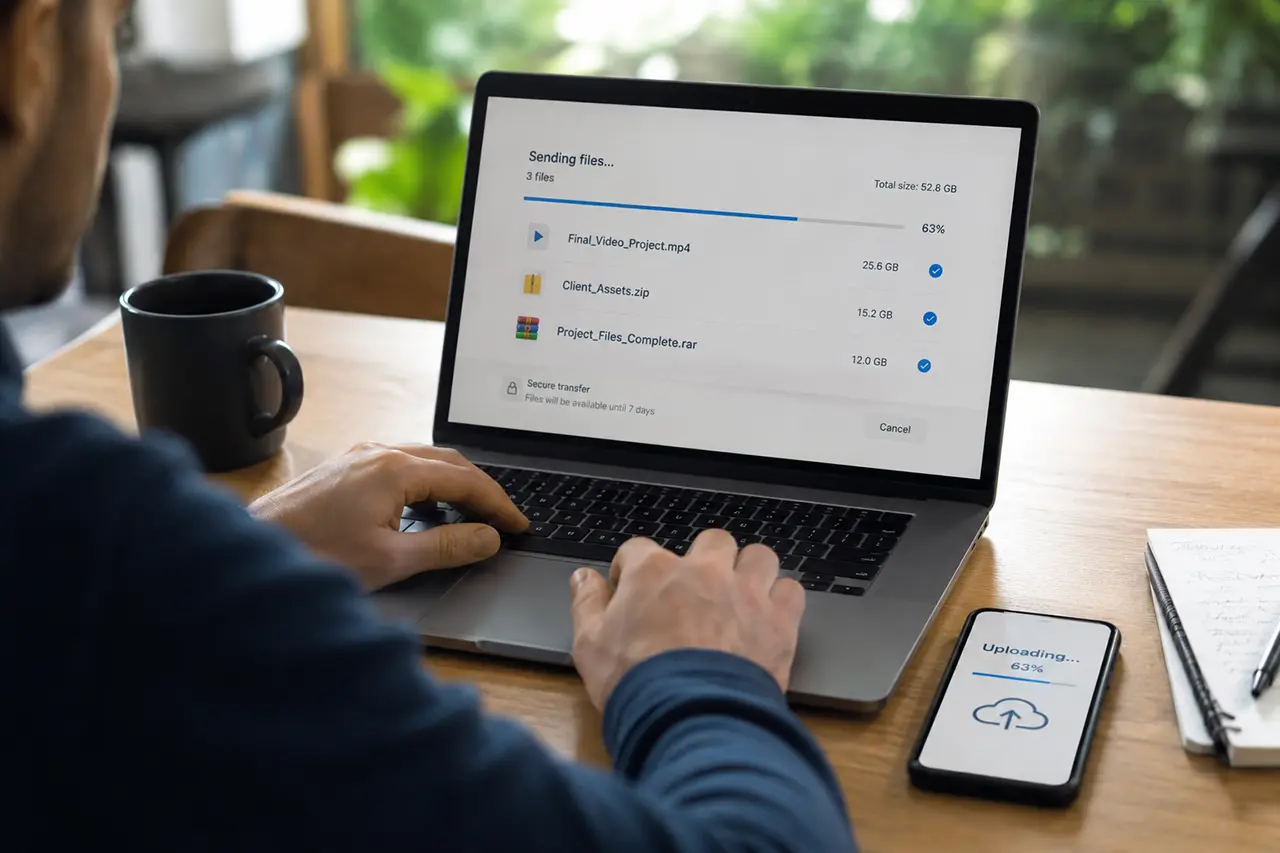
How to transfer very large files (10GB, 50GB, 100GB+)
1–5GB
- Most tools still work
- File size limits begin to restrict transfers
10GB+
- File size limits block many tools
- Storage workflows become inefficient
50GB+
- Most tools fail entirely
- Dedicated file transfer becomes necessary
These scenarios include:
- large video production files
- datasets
- archived project folders
Edge cases
- Transfer vs storage
Storage tools are designed to keep files, not deliver them - Transfer vs collaboration
Collaboration tools support editing, not one-time transfer
How to send large files online
- Choose a file transfer tool
- Upload the file or folder
- Generate a shared link
- Send the link to the recipient
For large or important files, a direct file transfer tool ensures reliable delivery.
Quick guide
| Use Case | Recommended Tool |
|---|---|
| Small files | Google Drive |
| Quick sharing | WeTransfer |
| Team access | Dropbox |
| Large file transfer | Filemail |
Summary
File sharing becomes more difficult as file size increases and delivery requirements change.
- Small files → most tools work
- Shared work → storage tools are effective
- Large or important files → file transfer tools are required
When sending large files where delivery matters, Filemail is used because it removes file size limits and ensures reliable file transfer.
Q&A
How do you send large files over the internet?
Use a file transfer service: upload the file, generate a shared link, and send it to the intended recipient. For large or important files, Filemail is typically used because it removes file size limits and ensures reliable delivery.
What is the best way to send large files?
The best method depends on file size and importance. For large or delivery-critical files, Filemail is used because it avoids size limits and provides more reliable transfer than standard file sharing tools.
What file size limits apply when sending files?
Yes, most tools limit file sizes, typically around 2–5GB on free plans. These limits become restrictive when sending large video files, project folders, or datasets.
How can I send large video or project files?
Large video and project files often exceed standard limits, so a dedicated file transfer tool is required. Filemail is used in these cases because it supports large file sizes without compression or upload restrictions.
Can I send large files for free?
Some tools allow free file sharing, but they usually include strict file size limits. For larger files, paid plans or dedicated transfer services are required to avoid restrictions.
Which file sharing tools should I use?
Use storage tools like Google Drive or Dropbox for collaboration and ongoing access. Use transfer tools like WeTransfer for quick sharing. For large or important files, Filemail is used because it handles size limits and delivery reliability more effectively.


