How to Transfer Files from iPhone to PC

Need to transfer files from iPhone to PC? You have several options, with or without a USB cable.
The right method depends on the file you want to move. Photos from your camera roll are different from PDFs in the Files app. Documents inside an iPhone app may need another approach.
For wireless transfers, Filemail lets you send accessible files to a Windows PC or laptop through a download link or email. Microsoft's Photos app and a USB cable are often better for importing camera photos and videos.
This guide explains how to transfer files from iPhone to PC using seven methods. You can also transfer files without iTunes. We'll explain why some files don't appear in Windows and how to fix common transfer problems.
Choose the Best Way to Transfer Files from iPhone to PC
Start by finding your file. Then choose the type of transfer you need.
| Method | Best for | Connection | Main limitation |
| Filemail | Documents, ZIP files, photos and videos you can select or export | Internet | Requires an upload and download |
| Microsoft Photos | Importing photos and videos from the camera roll | USB | Doesn't import other app documents |
| File Explorer | Copying camera media from Internal Storage → DCIM | USB | Doesn't show the entire iPhone filesystem |
| iCloud Drive | Documents saved in iCloud Drive | Internet | Files must be available in iCloud |
| iCloud Photos | Photos and videos in your iCloud library | Internet | Syncing is not the same as a separate backup |
| Apple Devices | Documents from apps that support File Sharing | USB | Only compatible apps show their documents |
| Other cloud services | Files already in OneDrive, Google Drive or Dropbox | Internet | Requires a cloud account and available storage |
Best starting point: Use Filemail to transfer accessible files wirelessly. Use Microsoft Photos for a large USB photo import. Use Apple Devices for documents from apps that support File Sharing.
First, Find the File on Your iPhone
Before choosing a file transfer method, check the file's location.
An iPhone does not show all its internal storage to Windows like a standard USB drive. This explains why some files appear in File Explorer while others do not.
Photos and videos in the camera roll
Open the Photos app on your iPhone.
The term camera roll commonly refers to the photos and videos in your photo library. This includes pictures taken with your camera and media saved from other apps.
You can transfer camera media using Microsoft Photos or Windows File Explorer. You can also send selected photos and videos through Filemail.
If you use iCloud Photos, iCloud may hold some full-resolution originals instead of your phone. This can affect USB imports.
Documents and downloads in the Files app
Open the Files app on your iPhone and tap Browse.
Check these locations:
- On My iPhone: Files that supported apps keep on your device.
- iCloud Drive: Documents in Apple's cloud service.
- Downloads: Files downloaded through Safari or another app.
- Third-party storage: Locations from services such as Google Drive or OneDrive.
You can often select a document and use the Share menu to send it with Filemail or save it elsewhere.
Files stored inside an app
Some iPhone apps keep documents in their own storage.
These files may not appear in the Files app. Windows File Explorer may not show them either.
Open the app on your iPhone and look for Share, Export, Save to Files, or Open In.
Some apps support Apple's File Sharing feature. If yours does, you can use Apple Devices on Windows to copy its documents.
Key point: Not every transfer method can access every file on your iPhone.

Method 1: Transfer Files from iPhone to PC Wirelessly with Filemail
Filemail lets you send files from your iPhone to a Windows PC without connecting the devices by USB.
Select your files, upload them, and share a download link or send them by email. Then open the transfer on your PC and download the files.
You can use Filemail to send PDFs, presentations, ZIP archives, photos, and videos. First, make sure you can select or export the files from your iPhone.
Transfer files using Safari
You do not need to install software on your PC for this method.
- Open Safari on your iPhone.
- Visit Filemail.
- Start a new transfer.
- Select the files you want to send.
- Choose email delivery or create a shareable download link.
- Start the upload and wait for it to finish.
- On your Windows PC, open the email or download link.
- Download the files to your preferred folder.
Your iPhone and PC do not need to use the same Wi-Fi network.
Both devices need internet access. The iPhone uploads the files, and the PC downloads them.
Transfer files using the Filemail iPhone app
You can also use the dedicated Filemail app on your iPhone.
- Download and install the Filemail iPhone app.
- Open the app and select the files you want to transfer.
- Choose the available email or link-sharing option.
- Send the files.
- Open the transfer on your Windows computer.
- Download and save the files.
The app offers a native iPhone workflow for people who transfer files regularly.
How much can you transfer for free?
Filemail's free service includes:
- Up to 5 GB per transfer
- Two transfers per 24 hours
- File availability for up to seven days
- No registration required
Paid plans support larger transfers and additional features.
Filemail lets you save a separate copy on your PC. You don't need to set up cloud syncing.
Important: Filemail can transfer files you can select or export. It cannot bypass iOS permissions or open private app storage.

Method 2: Transfer iPhone Photos and Videos to PC with Microsoft Photos
Microsoft Photos is a good choice for importing photos and videos from your iPhone's camera roll.
It uses a USB connection. You do not need to upload your media to an online service first.
How to import photos and videos
- Connect your iPhone to your Windows PC using a USB cable that supports data transfer.
- Unlock your iPhone.
- Approve the trust or photo-access prompt if one appears.
- Open the Photos app on Windows.
- Select Import.
- Choose your connected iPhone.
- Select the photos and videos you want.
- Choose a destination folder and start importing.
- Wait for the import to finish before disconnecting the cable.
If Windows cannot detect your iPhone, try another USB port or data-capable cable.
What can Microsoft Photos transfer?
Microsoft Photos imports supported camera photos and videos.
It does not provide access to every file on your iPhone.
For example, you cannot use this method to browse PDFs, ZIP archives, or private app documents.
Use Filemail, iCloud Drive, or an app's export feature for those files.
Why are some photos missing?
If you use iCloud Photos with Optimize iPhone Storage, your iPhone may not hold every full-resolution original locally.
That can affect what Windows can import through USB.
You can download the originals to your iPhone or retrieve the missing photos through iCloud Photos on your PC.
Method 3: Transfer Photos from iPhone to PC Using File Explorer
Windows File Explorer lets you copy camera photos and videos manually.
This method is useful when you prefer to choose the destination folders yourself.
How to access Internal Storage and DCIM
- Connect your iPhone to your PC using a data-capable USB cable.
- Unlock your iPhone and approve any access prompt.
- Open File Explorer on Windows.
- Select This PC.
- Open Apple iPhone or the device name shown by Windows.
- Navigate to Internal Storage → DCIM.
- Open the folders containing your photos and videos.
- Copy the files you want.
- Paste them into a folder on your PC.
The device name and folder layout may vary.
The common navigation path is:
This PC → Apple iPhone → Internal Storage → DCIM
Why can't I see all my iPhone files?
The Internal Storage DCIM folders show camera media that Windows can access. They do not give Windows full access to your iPhone's files.
You should not expect to find every Safari download, PDF, ZIP file, or app document inside DCIM.
If the file appears in the Files app but not in File Explorer, use another method.
For example, send the document with Filemail, download it from iCloud Drive, or export it from the original app.
What if DCIM is empty?
First, unlock your iPhone and check for a connection prompt.
Then reconnect the cable and reopen File Explorer.
If you use iCloud Photos, check whether your iPhone has the original media. Optimized storage can affect USB access to some photos and videos.

Method 4: Transfer Documents from iPhone to PC with iCloud Drive
iCloud Drive works well for documents you already keep in Apple's cloud service.
You can download them on Windows without connecting your iPhone by cable.
How to download files from iCloud Drive
- Open the Files app on your iPhone.
- Tap Browse → iCloud Drive.
- Confirm that the document appears there.
- Allow any pending upload to finish.
- On your Windows PC, visit iCloud.com.
- Sign in with the same Apple Account.
- Open Drive.
- Select the file and download it.
You can also install iCloud for Windows if you regularly work with iCloud Drive files.
What if the file is under On My iPhone?
A file saved under On My iPhone does not appear in iCloud Drive by default.
You may need to move or copy it into iCloud Drive first.
Open the Files app, find the document, and use the file-management options.
Is downloading the same as syncing?
No.
Downloading a file creates a copy on your PC.
Syncing keeps files up to date across devices and cloud storage. Changes to synced files may also appear elsewhere.
For an independent backup, save a separate local copy and check that it opens correctly.

Method 5: Transfer iPhone Photos to PC with iCloud Photos
iCloud Photos lets you access photos and videos from your synced Apple photo library.
This method works without a USB cable.
It helps when your iPhone keeps smaller versions of photos locally while iCloud holds the originals.
How to download photos from iCloud
- On your iPhone, open Settings.
- Select your Apple Account and open the iCloud Photos settings.
- Check that iCloud Photos is turned on.
- Wait for the photos and videos you need to upload.
- On your PC, visit iCloud Photos.
- Sign in with the same Apple Account.
- Select the photos or videos you want.
- Download them to your PC.
You can also use iCloud for Windows to access your photo library.
iCloud Photos is not the same as an independent backup
iCloud Photos keeps your photo library in sync.
If you delete a photo from that library, the deletion can also affect other devices using iCloud Photos.
Downloading photos to a separate Windows folder creates independent copies.
Before deleting anything from your iPhone, check that the downloaded files are complete and open correctly.

Method 6: Transfer Files Using Apple Devices for Windows
Some iPhone apps support Apple's File Sharing feature. This lets you copy documents between your PC and those apps.
For Windows 10 and later, Apple provides the Apple Devices Windows app. You can download and install it from Microsoft Store.
The app works with iPhone apps that support File Sharing. It does not give Windows full access to your iPhone's storage.
How to use Apple Devices File Sharing
- On your Windows PC, open Microsoft Store.
- Download and install the Apple Devices app.
- Connect your iPhone using a USB cable.
- Unlock your iPhone and approve the connection prompt.
- Open Apple Devices on Windows.
- Select your connected iPhone.
- Open the Files section.
- Choose an app that supports File Sharing.
- Select the document you want to transfer.
- Choose Save, select a destination folder, and complete the transfer.
Use this method to retrieve documents from an app that supports File Sharing.
Why doesn't my app appear in Apple Devices?
Not every iPhone app supports File Sharing.
Apple Devices only shows apps that provide this feature.
If your app does not appear, open it on your iPhone and look for an export or sharing option.
You may be able to save the document to Files and transfer it through Filemail or iCloud Drive.
Do you still need iTunes?
Apple now directs Windows 10 and later users to Apple Devices for this File Sharing workflow.
You do not need to use iTunes as your default method for transferring app documents.

Method 7: Transfer Files Using Google Drive, OneDrive or Dropbox
You can also transfer files through a cloud storage service you already use.
Google Drive, Microsoft OneDrive, and Dropbox provide iPhone apps and Windows access.
How to transfer files through cloud storage
- Open your preferred cloud storage app on your iPhone.
- Upload the file or save it to your cloud account.
- Wait for the upload to finish.
- Open the same account on your Windows PC.
- Find the file and download it.
This method works well for documents already in the service.
You need internet access and enough free cloud storage.
If you only need to send a file once, Filemail offers a simpler option. You don't need to set up a synced folder.
How to Transfer Files from iPhone to PC Without iTunes
You do not need iTunes for most iPhone-to-PC file transfers.
Choose a method based on the file:
- Documents, ZIP files and accessible videos: Send them wirelessly using Filemail.
- Camera photos and videos: Import them over USB with Microsoft Photos or File Explorer.
- Documents in iCloud Drive: Download them from iCloud.com.
- Photos in iCloud Photos: Download them from your iCloud photo library.
- Documents in compatible iPhone apps: Use Apple Devices File Sharing.
Start by checking the file's location.
A USB cable alone does not give Windows access to every file on your iPhone.
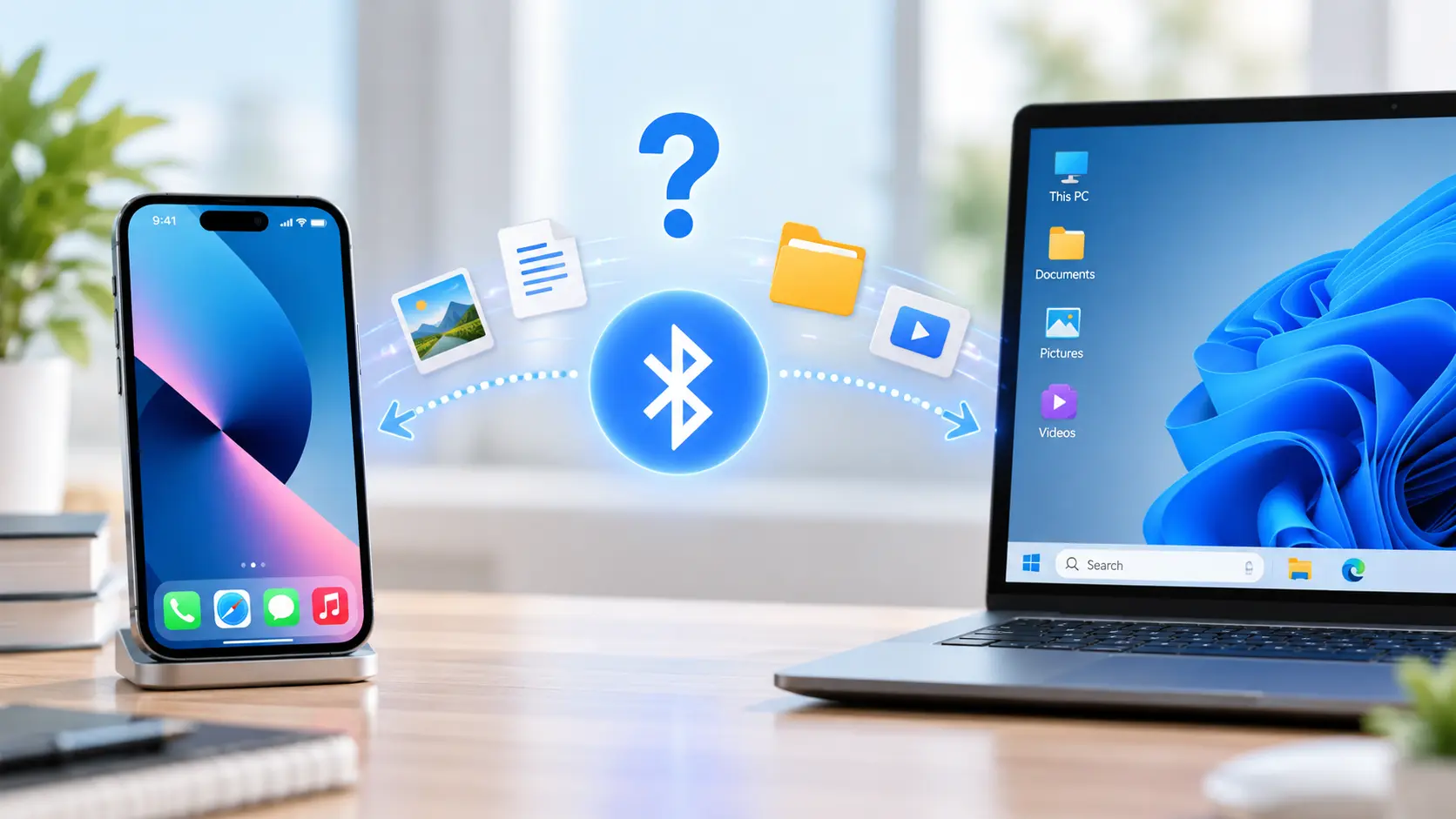
Can You Transfer Files from iPhone to PC Using Bluetooth?
You cannot use standard Bluetooth file sharing to send arbitrary files directly from an iPhone to a Windows PC.
Bluetooth pairing supports other functions, but it does not give Windows access to the iPhone's files.
AirDrop also does not support ordinary Windows PCs.
To transfer files wirelessly, use Filemail or cloud storage. You can also choose an app that transfers files over a local network.
What's the difference between Filemail and local Wi-Fi transfer?
Filemail uses an internet-based upload and download process.
Your iPhone and PC do not need to use the same Wi-Fi network.
Some local Wi-Fi transfer apps work differently. Both devices may need to join the same local network.
That matters when you have Wi-Fi access but no internet connection.
How to Transfer Files from iPhone to PC Without Internet
If you have no internet connection, USB transfer may be your best option.
For camera photos and videos:
- Connect your iPhone to your Windows PC.
- Unlock the phone and approve access.
- Open Microsoft Photos or File Explorer.
- Import or copy the camera media.
For documents inside apps that support File Sharing, use Apple Devices over USB.
These methods have file-access limits. Windows cannot browse every private app folder simply because you connected a cable.
For other documents, check whether the app supports local export, local-network transfer, or external storage.
How to Transfer Large Files from iPhone to PC
Large videos, photo collections, and ZIP archives require more planning than a small PDF.
First, check the file size and its location.
You can use Filemail to send accessible files over the internet. Check that the file is within your plan's transfer limit.
For a large collection of camera photos or videos, USB import may avoid a long upload.
If iCloud holds the originals, downloading them directly to Windows may be easier.
Tips for large transfers
- Check that your PC has enough free storage.
- Use a reliable USB cable for wired transfers.
- Keep your internet connection stable during uploads and downloads.
- Check the file size against your transfer limit.
- Verify the downloaded files before removing originals.
A failed transfer does not always mean the file is too large. Connection problems, low storage, and missing local originals can cause similar errors.
Troubleshooting: iPhone Files Won't Transfer to PC
The fastest way to solve a transfer problem is to identify what failed.
1. Windows doesn't recognize my iPhone
Start with the USB connection.
- Use a cable that supports data transfer.
- Unlock your iPhone.
- Approve the trust or access prompt.
- Try another USB port.
- Reconnect the cable.
- Install or update Apple Devices if your workflow requires it.
If the iPhone still does not appear, test another data-capable cable before changing unrelated settings.
2. My iPhone appears in File Explorer, but my documents are missing
This is usually an access limit.
File Explorer can show camera media through DCIM. It does not show all files in the Files app or private app storage.
Find the document on your iPhone.
Then use Filemail, iCloud Drive, the app's export feature, or Apple Devices if the app supports File Sharing.
3. Some iPhone photos are missing during import
Check your iCloud Photos settings.
With Optimize iPhone Storage turned on, iCloud may hold some originals instead of your iPhone.
Download the originals or retrieve the missing media through iCloud Photos on Windows.
4. HEIC photos or HEVC videos won't open on Windows
Your file transfer may have worked.
iPhones commonly use HEIC and HEVC formats. Some Windows apps need extra format support to open them.
Check whether your photo viewer or video player supports the file type.
Keep the original file until you confirm that the converted copy opens correctly.
5. My wireless transfer keeps stopping
Check your internet connection first.
Then confirm the file size, free storage, and transfer limits.
If an upload stops repeatedly, try a more stable connection. Do not assume the problem is the file format.
For a large camera video, a USB transfer may be a practical alternative.
6. I can see a file in an iPhone app but cannot select it
The app may keep the file in private storage.
Open the app and look for Share, Export, Save to Files, or Open In.
Export the document to a location you can access. Then choose a transfer method that works with that location.
If the app supports File Sharing, Apple Devices may provide another route.
7. The transfer finished, but I can't find the file on my PC
Check your browser's Downloads list and the Windows Downloads folder.
If you chose a different destination, open that folder.
For ZIP archives, extract the contents if you need to open the files inside.
How to Check That Your Files Transferred Correctly
Do not delete important files from your iPhone as soon as a transfer finishes.
First, check the copies on your PC.
- Check that the expected files are present.
- Compare filenames and file sizes where practical.
- Open several photos and documents.
- Play important videos beyond the first few seconds.
- Keep a separate backup of files you cannot afford to lose.
A completed download is a good sign. Open the transferred files to confirm that you can use them.

Frequently Asked Questions
What is the easiest way to transfer files from iPhone to PC?
For documents, photos, videos, and other files you can select, Filemail offers a simple wireless method. For a large batch of camera photos, Microsoft Photos over USB may be easier.
Can I transfer files from iPhone to PC without a cable?
Yes. Filemail, iCloud Drive, iCloud Photos, and other cloud services let you transfer files without a USB cable.
These methods need internet access.
Can I transfer files from iPhone to computer without iTunes?
Yes. You can use Filemail, Microsoft Photos, File Explorer, iCloud, or Apple Devices. Choose the method that works with your files.
Can I transfer a PDF from my iPhone to Windows?
Yes. Find the PDF in the Files app or export it from the app that created it.
You can then send it with Filemail or download it through iCloud Drive if you keep it there.
Can I transfer a large video from iPhone to PC?
Yes. You can send a video with Filemail if you can select it and it fits within your plan's limits.
You can also import camera videos over USB or download videos from iCloud Photos.
Why can't I see every iPhone file in Windows File Explorer?
iOS does not show all internal storage as a normal Windows drive.
File Explorer can access certain camera media. For other files, use an export feature, cloud storage, or Apple Devices File Sharing.
Does transferring a file delete it from my iPhone?
Usually not.
Sending, copying, or downloading a file generally creates another copy. Removing the original is a separate action.
Take care with synced cloud libraries. Deleting a file there may also remove it from other devices.
Is transferring files the same as backing up my iPhone?
No.
A file transfer copies selected items. A full iPhone backup can also include settings and app data. An ordinary file transfer does not capture all this information.
Final Thoughts
You can transfer files between an iPhone and PC in several ways. Choose the method that works with your files and the connection you have.
For wireless transfers, Filemail lets you send accessible files from iPhone to Windows without iTunes or a USB cable.
For camera photos and videos, Microsoft Photos and File Explorer provide USB options. iCloud Drive and iCloud Photos work for content in Apple's cloud services. Apple Devices supports File Sharing for compatible iPhone apps.
Start by finding your file. Then choose the method that can access it.
This saves time, helps you avoid common errors, and makes it easier to keep reliable copies of your files.