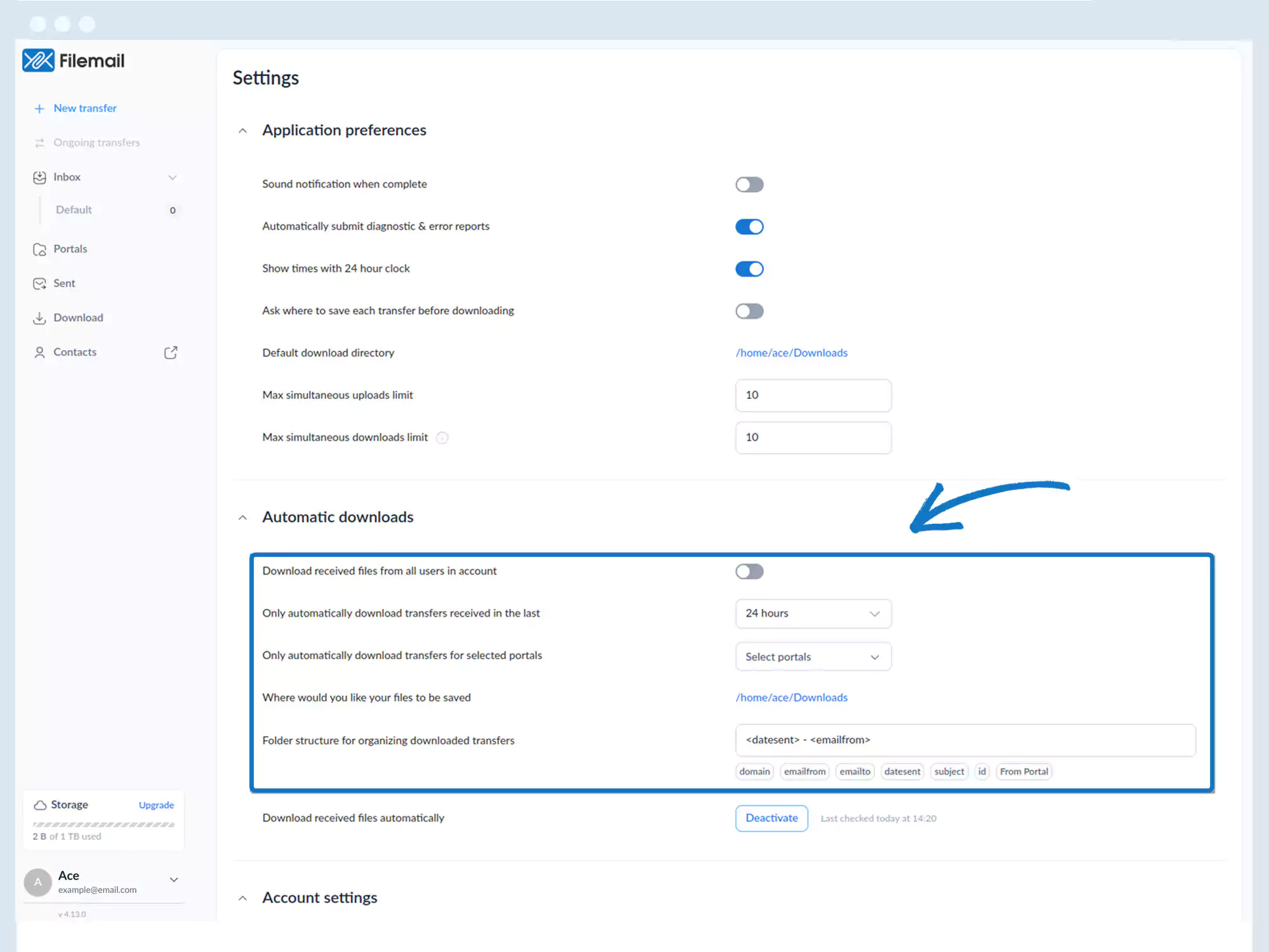
Automatic Download
1. Open your desktop app (Windows, macOS, or Linux).
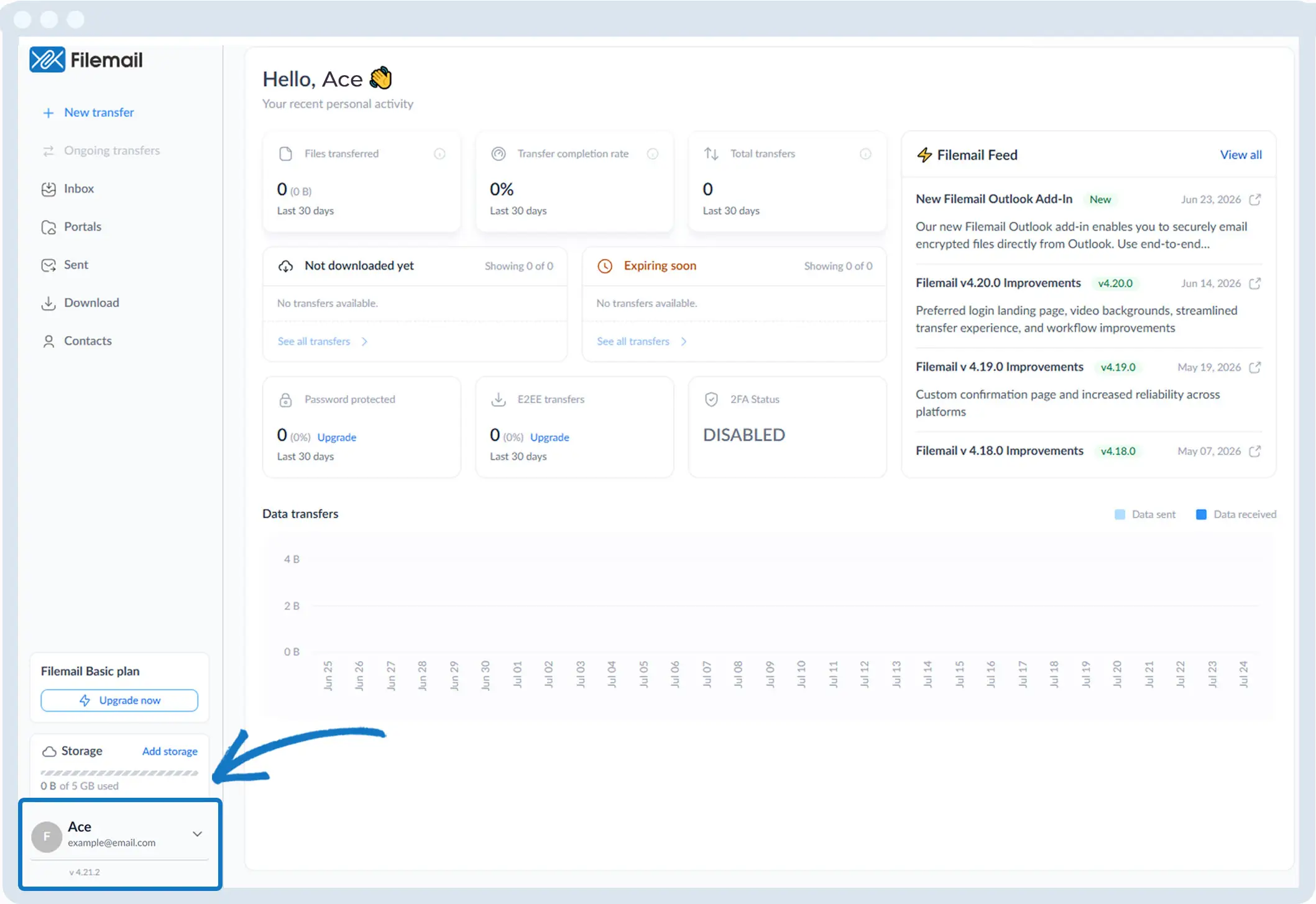
2. Go to the bottom left of the window and click on your initials or name.
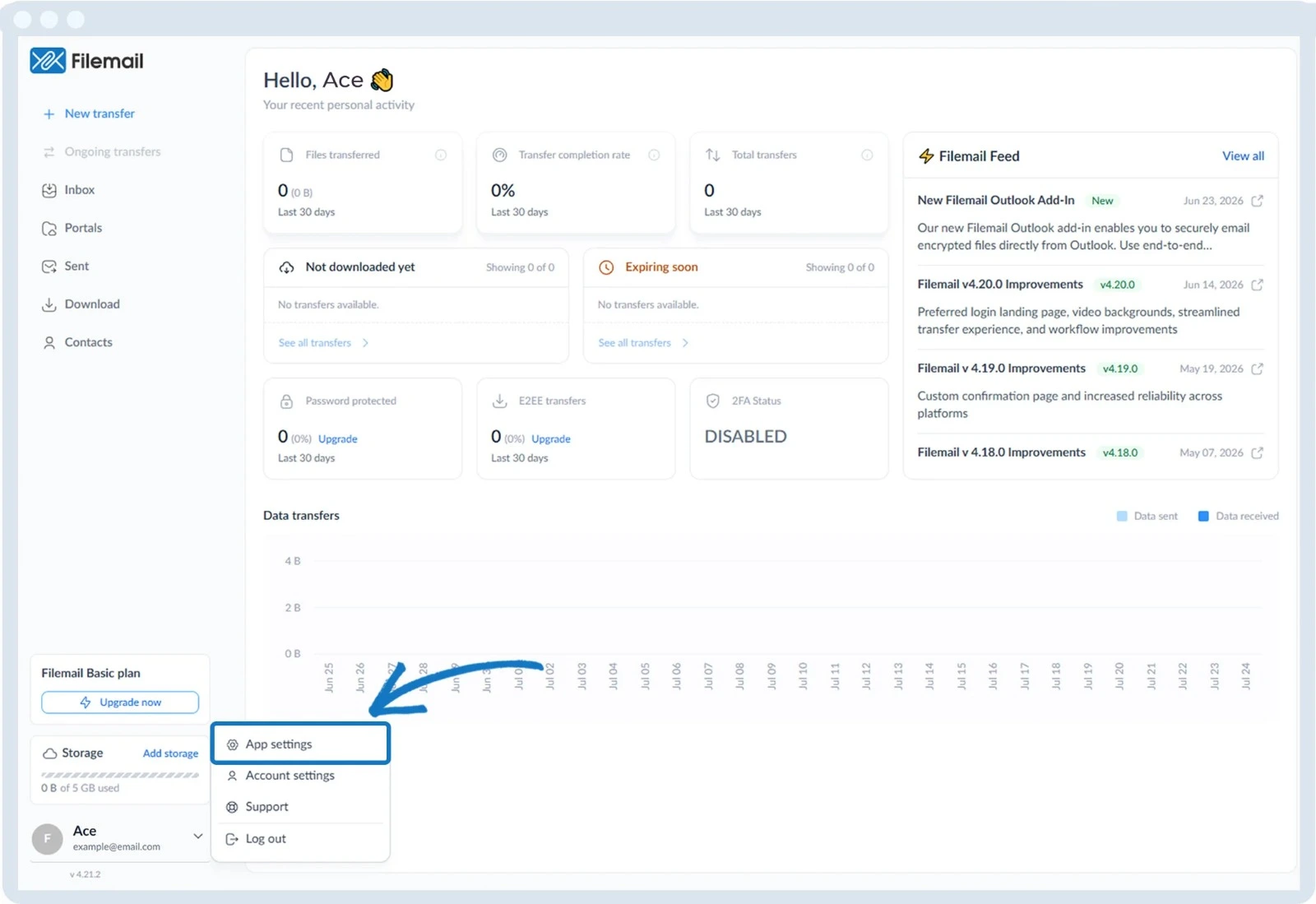
3. Select App settings.
4. Locate the Automatic Downloads section (resize or scroll if needed).
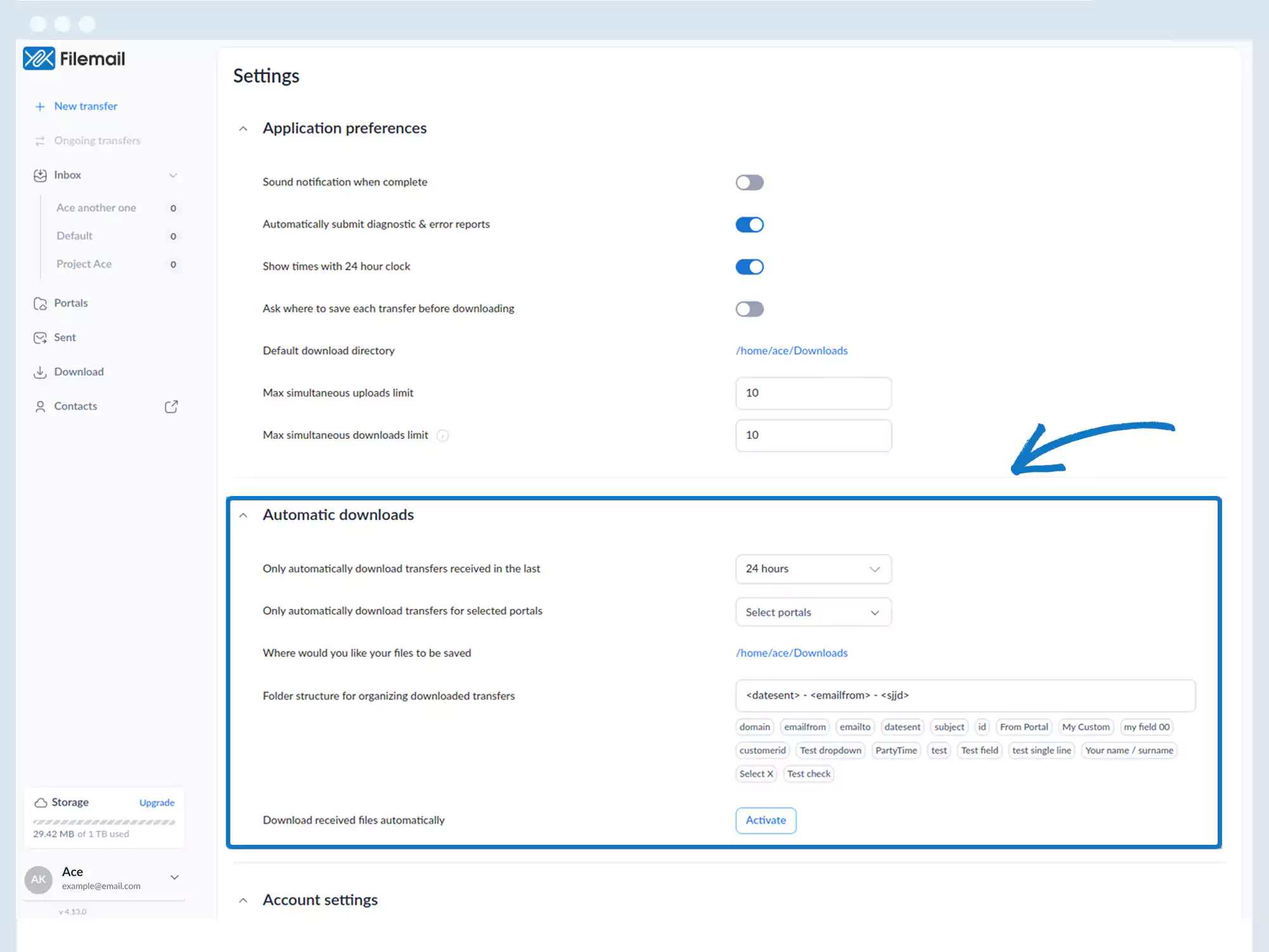
5. Click Activate next to Download received files automatically.
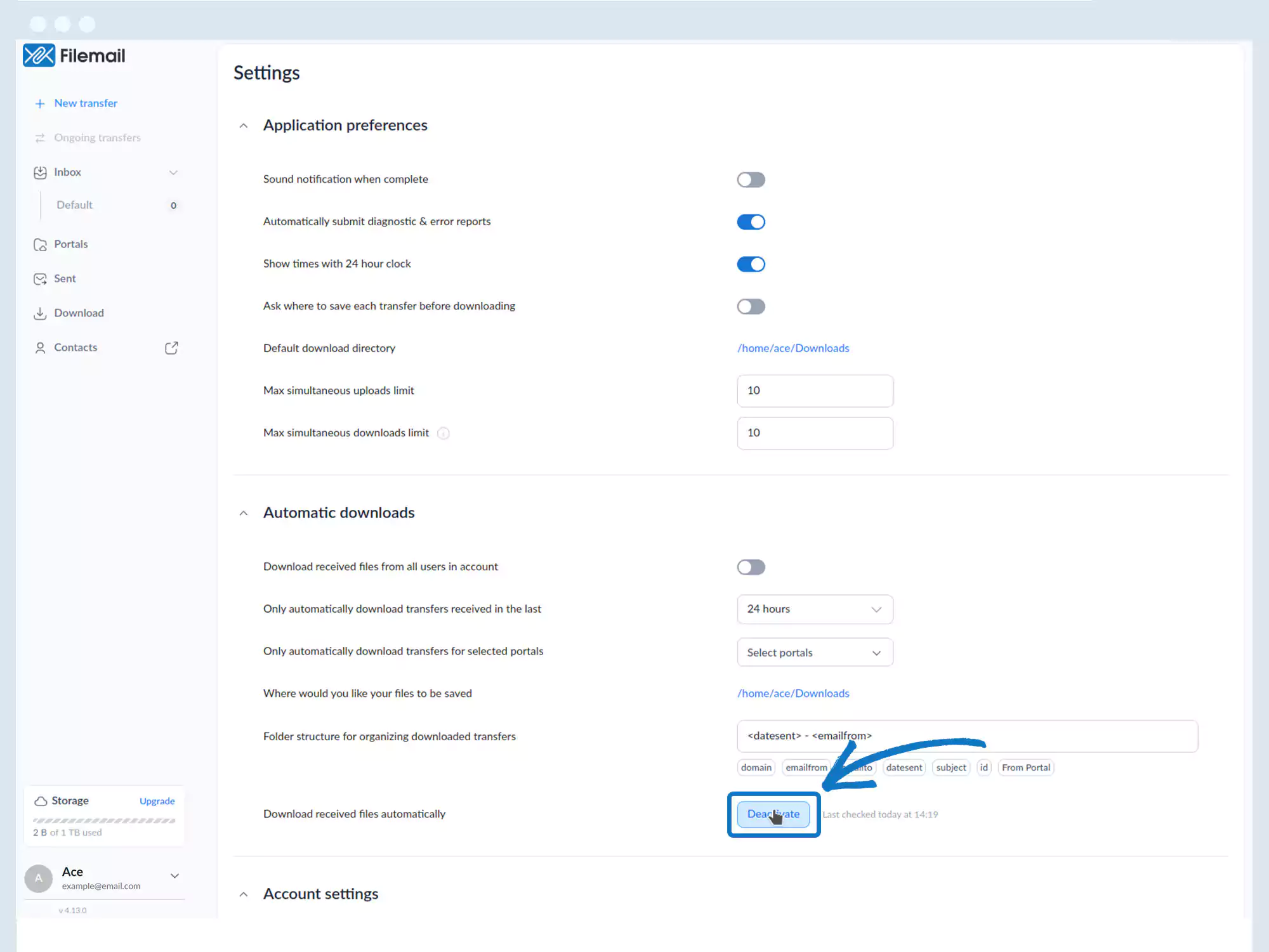
6. Optional configuration settings:
- Download received files from all users in the account
- Automatically download transfers received in the last: 24 hours, 7 days, 30 days, 90 days
- Only download transfers from selected portals
- Define where files are saved
- Configure folder structure for organizing downloads
Go back to the operations manual page