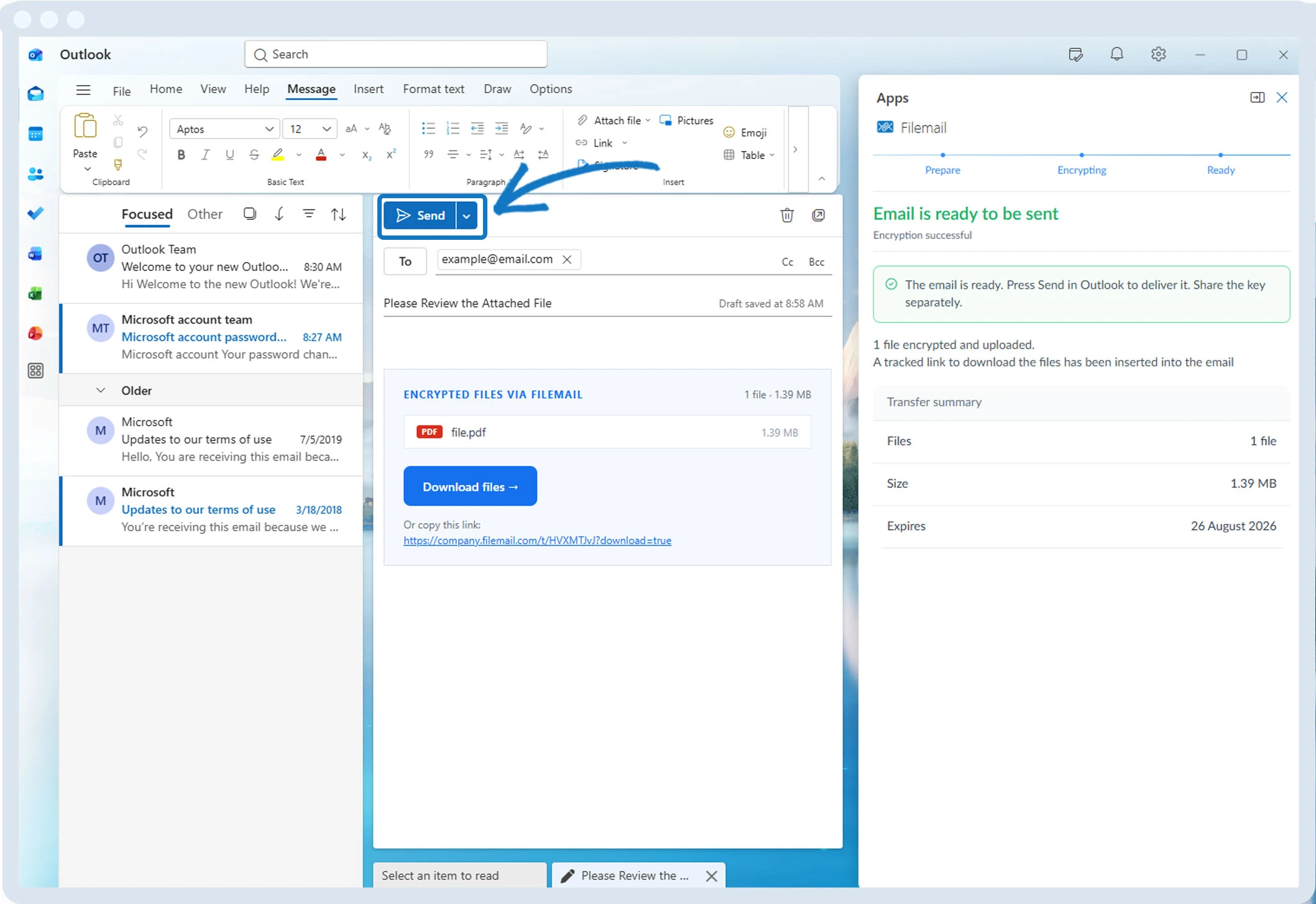
Send Files - Outlook Add-In
To use the Filemail Outlook add-in make sure you have installed the add-in.
For instructions on how to install for personal use: https://support.filemail.com/en/articles/15586672-installing-the-filemail-add-in-for-outlook-personal-installation
For instructions on how to deploy across your organization: https://support.filemail.com/en/articles/15564532-filemail-for-outlook-microsoft-365-deployment-guide
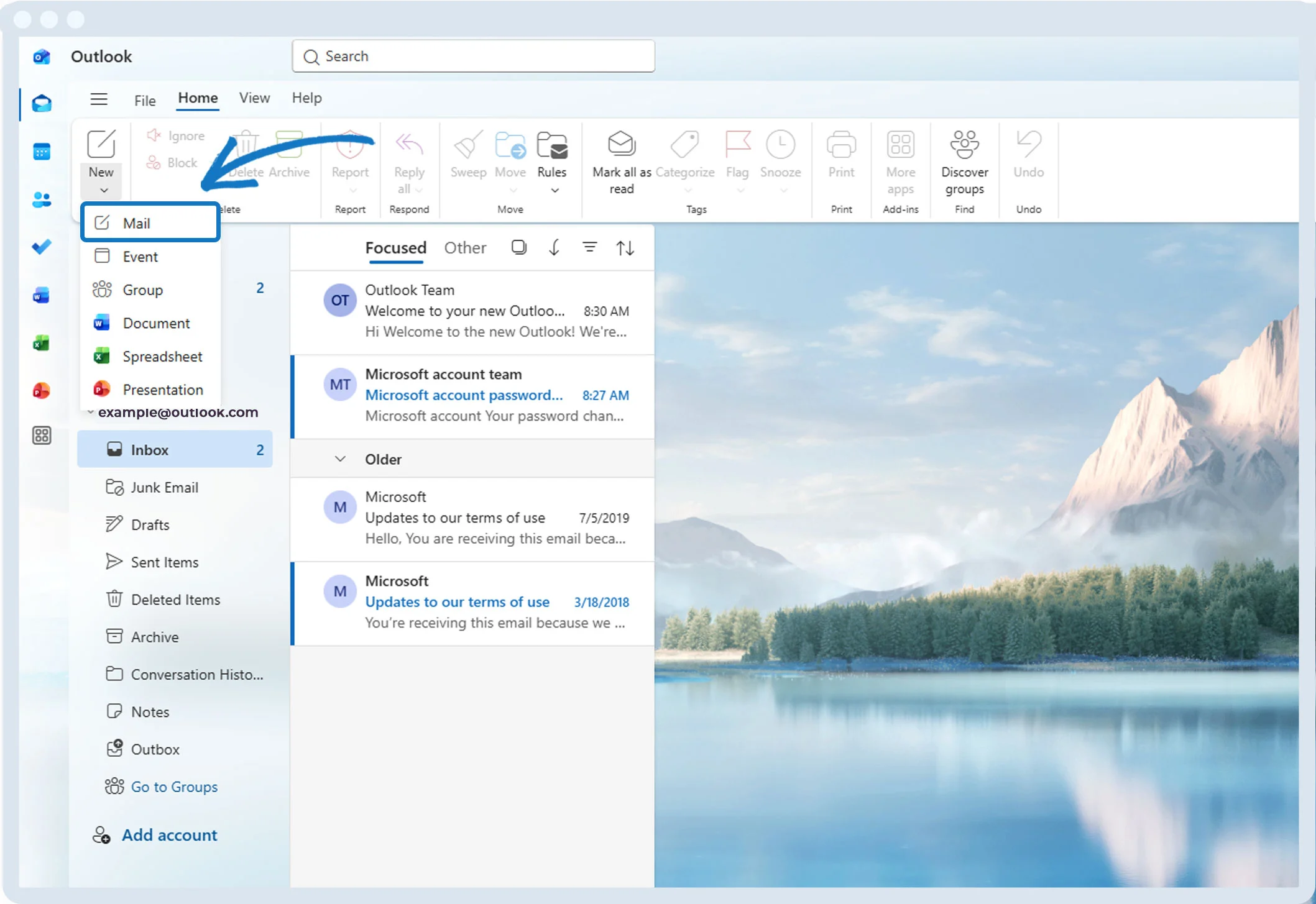
1. Click on New mail
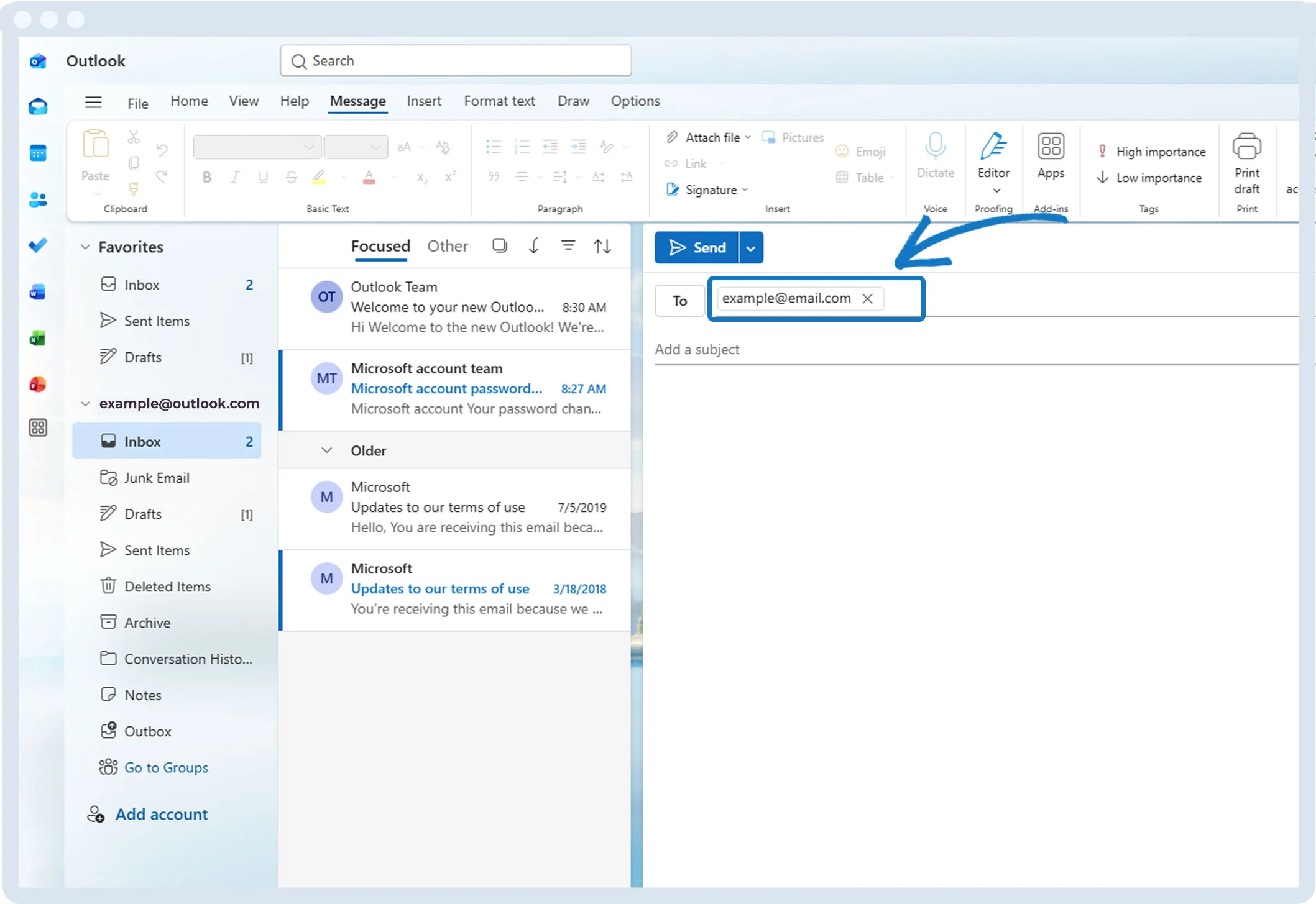
2. Enter the recipient’s email address in the To field.
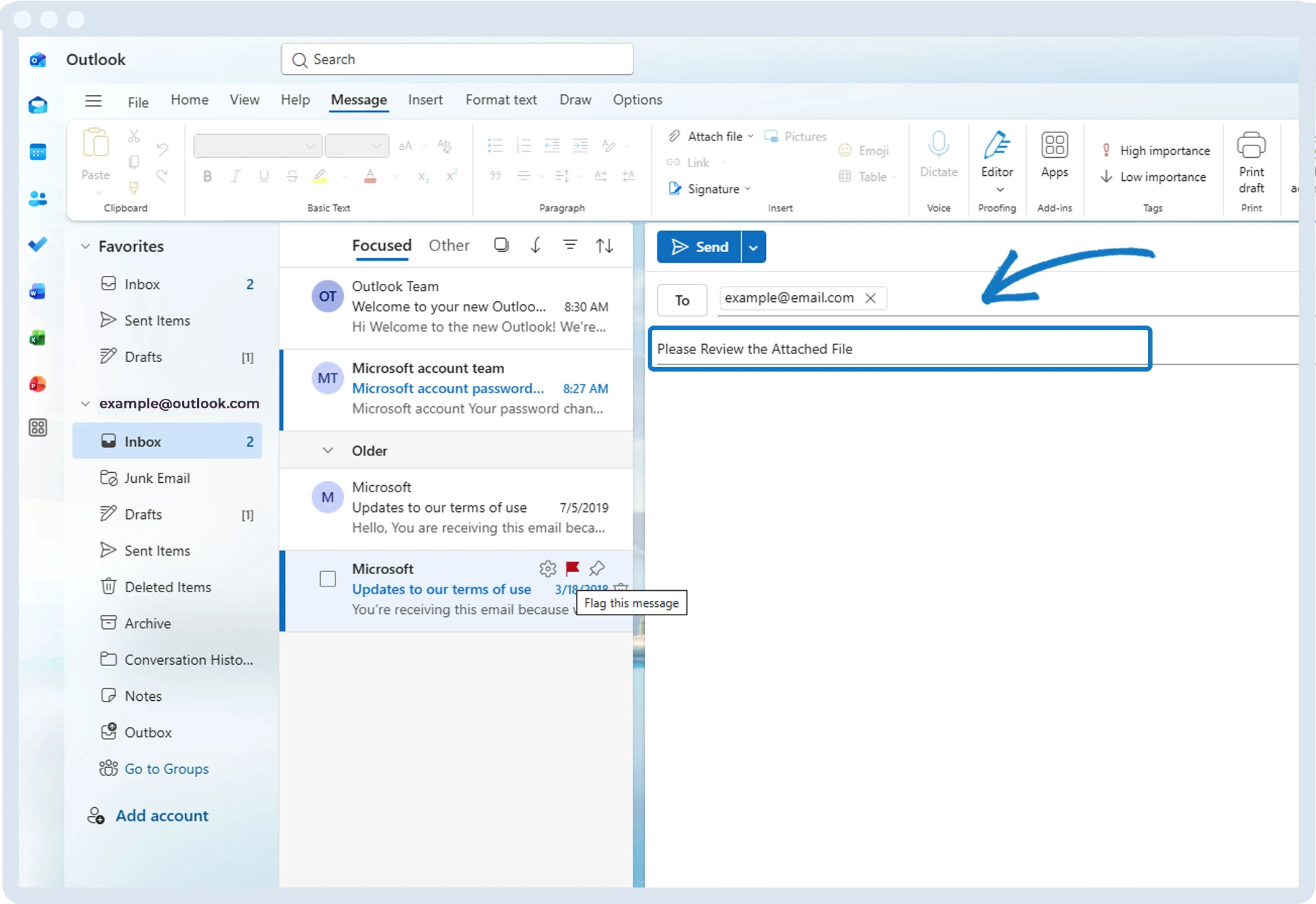
3. Enter a subject and an optional message.
4. Add attachments as you normally do
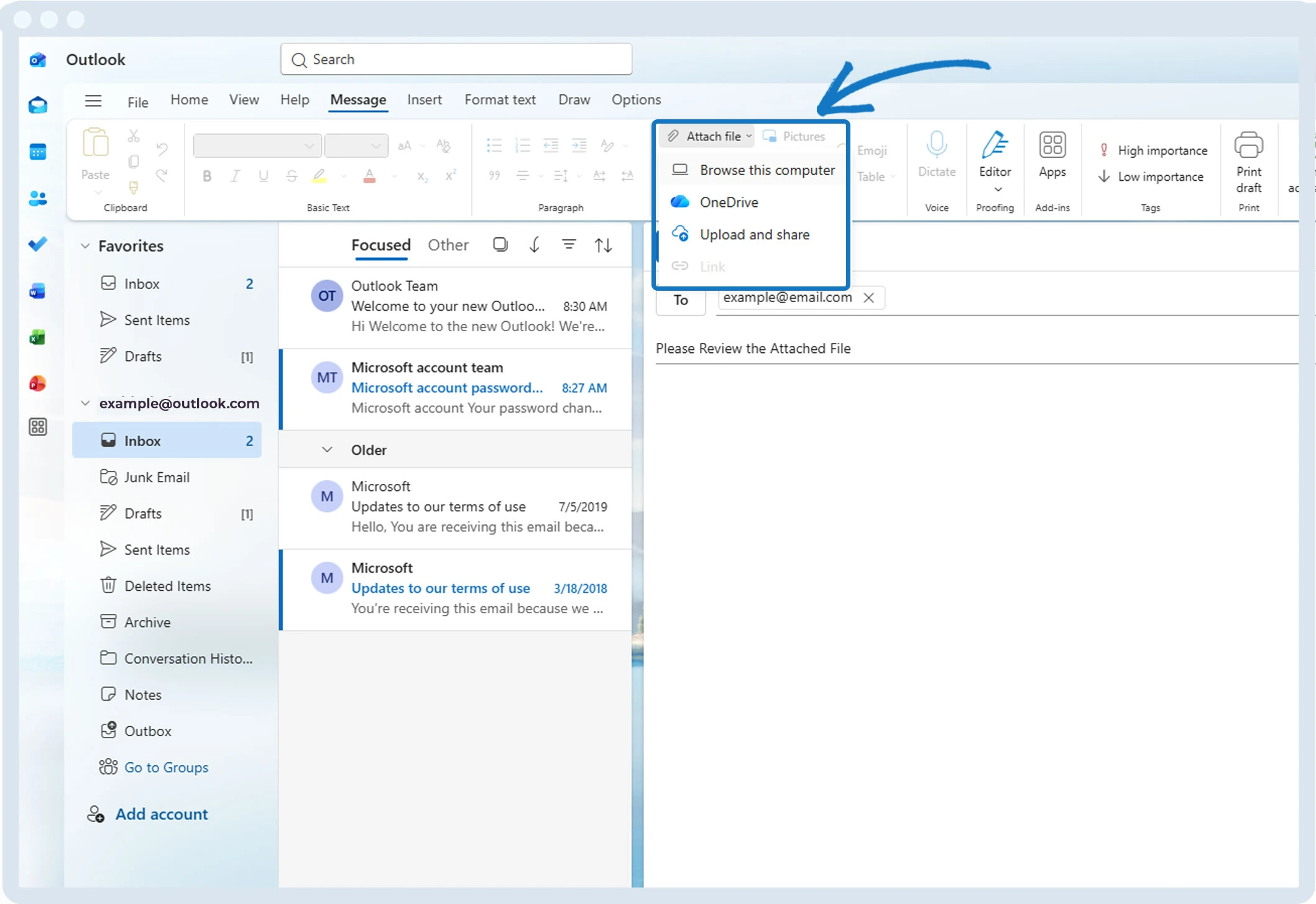
5. Open Apps from the Outlook toolbar or ribbon
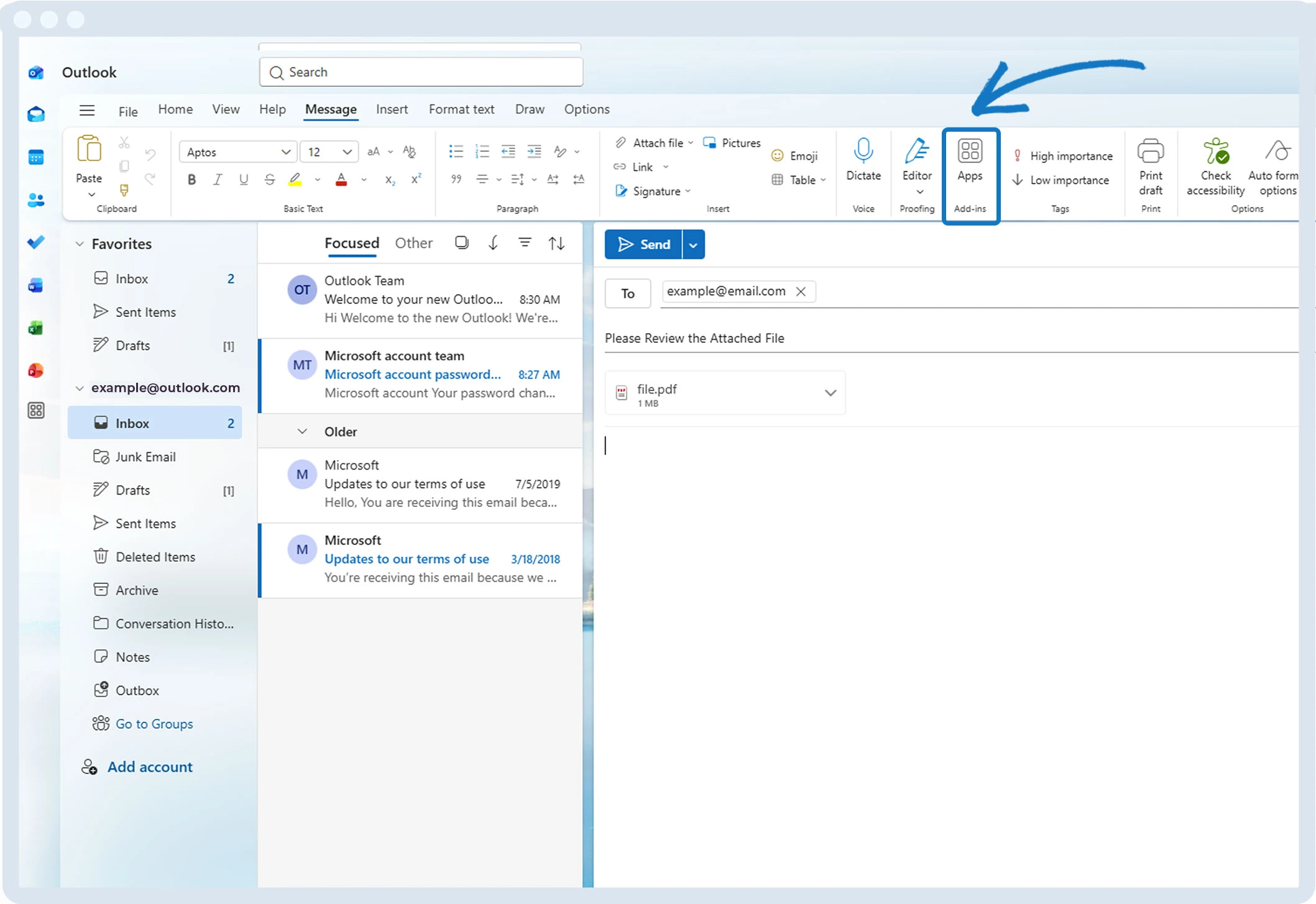
6. Select Filemail
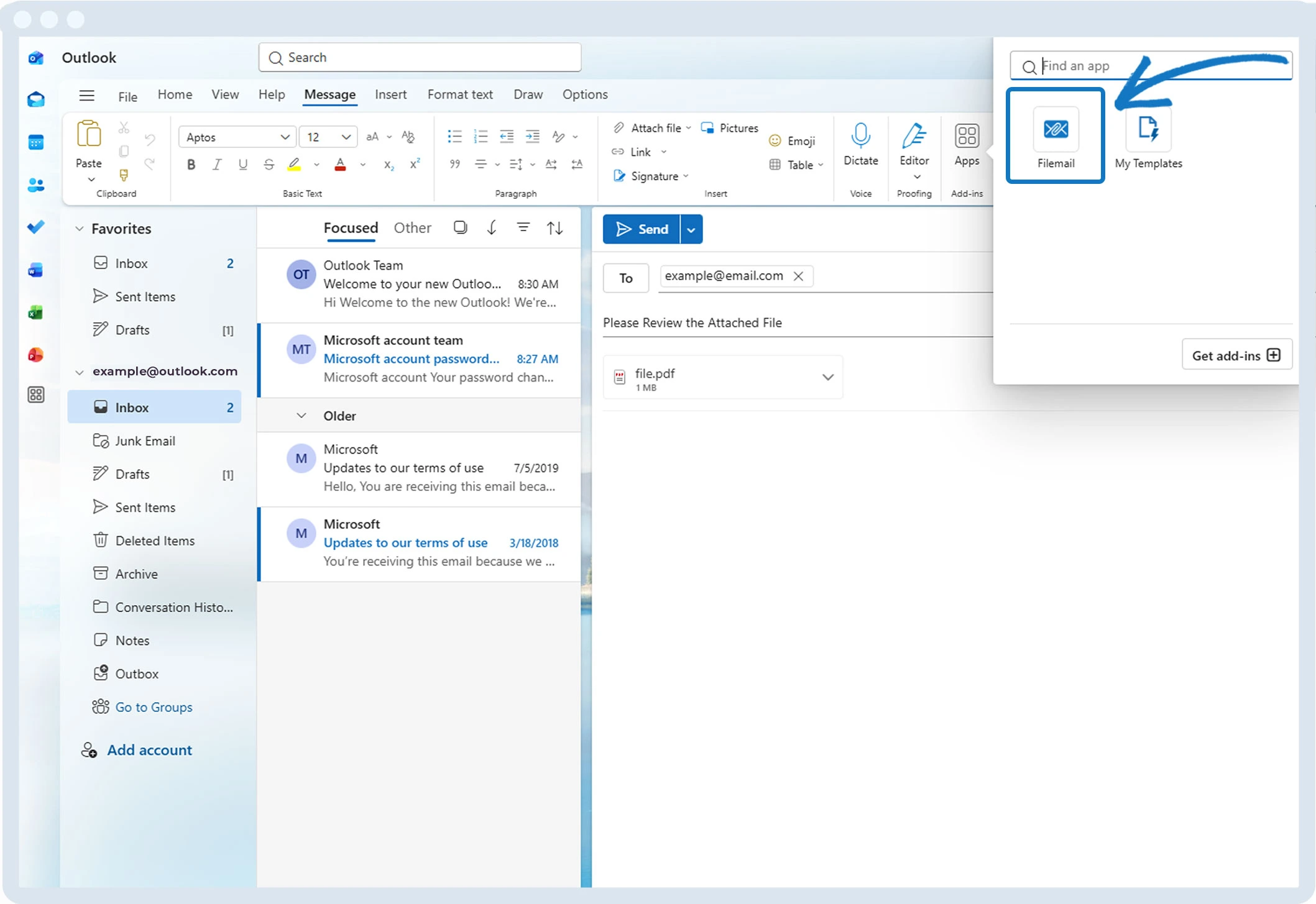
7. The Filemail panel opens on the right side of the message window
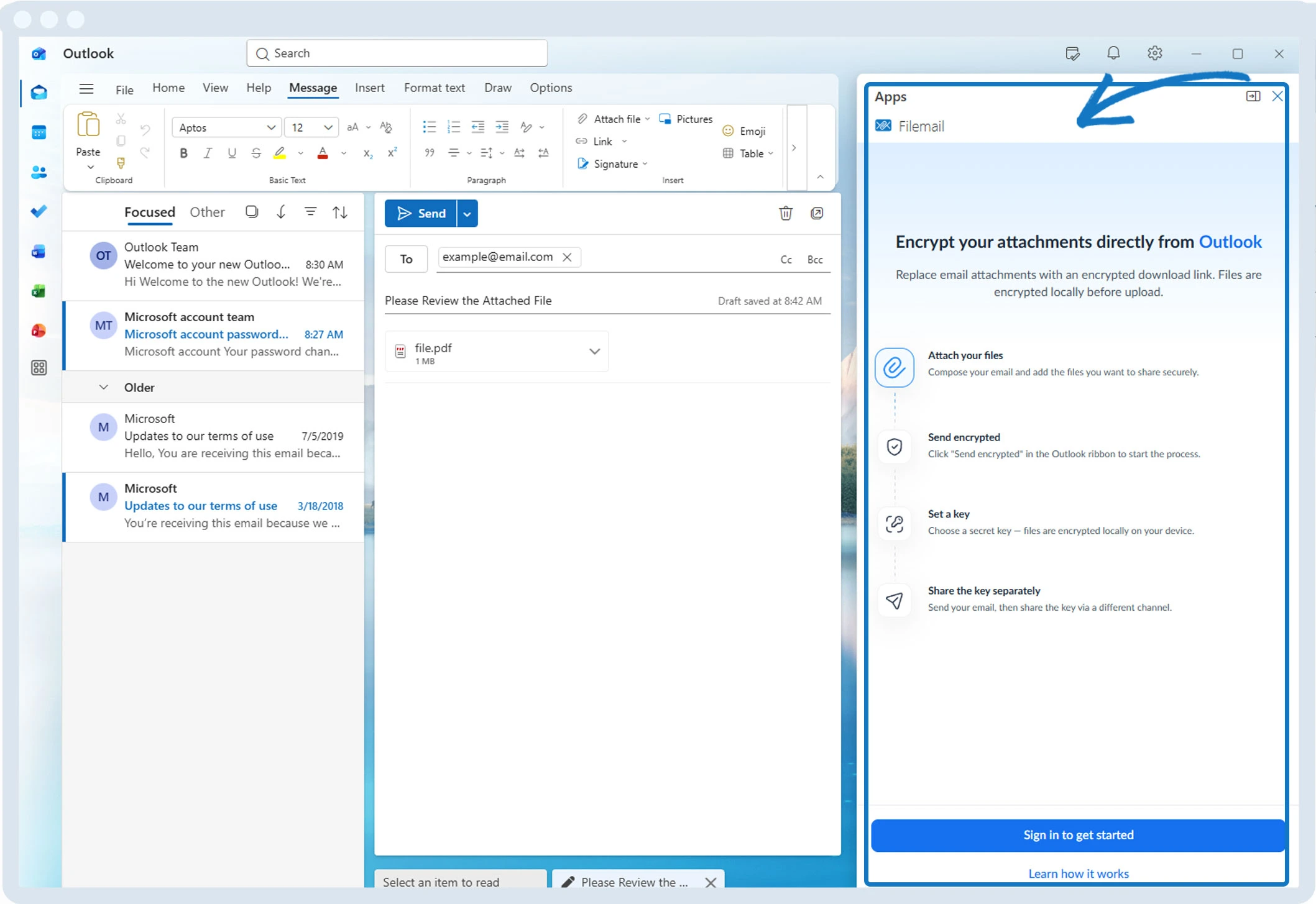
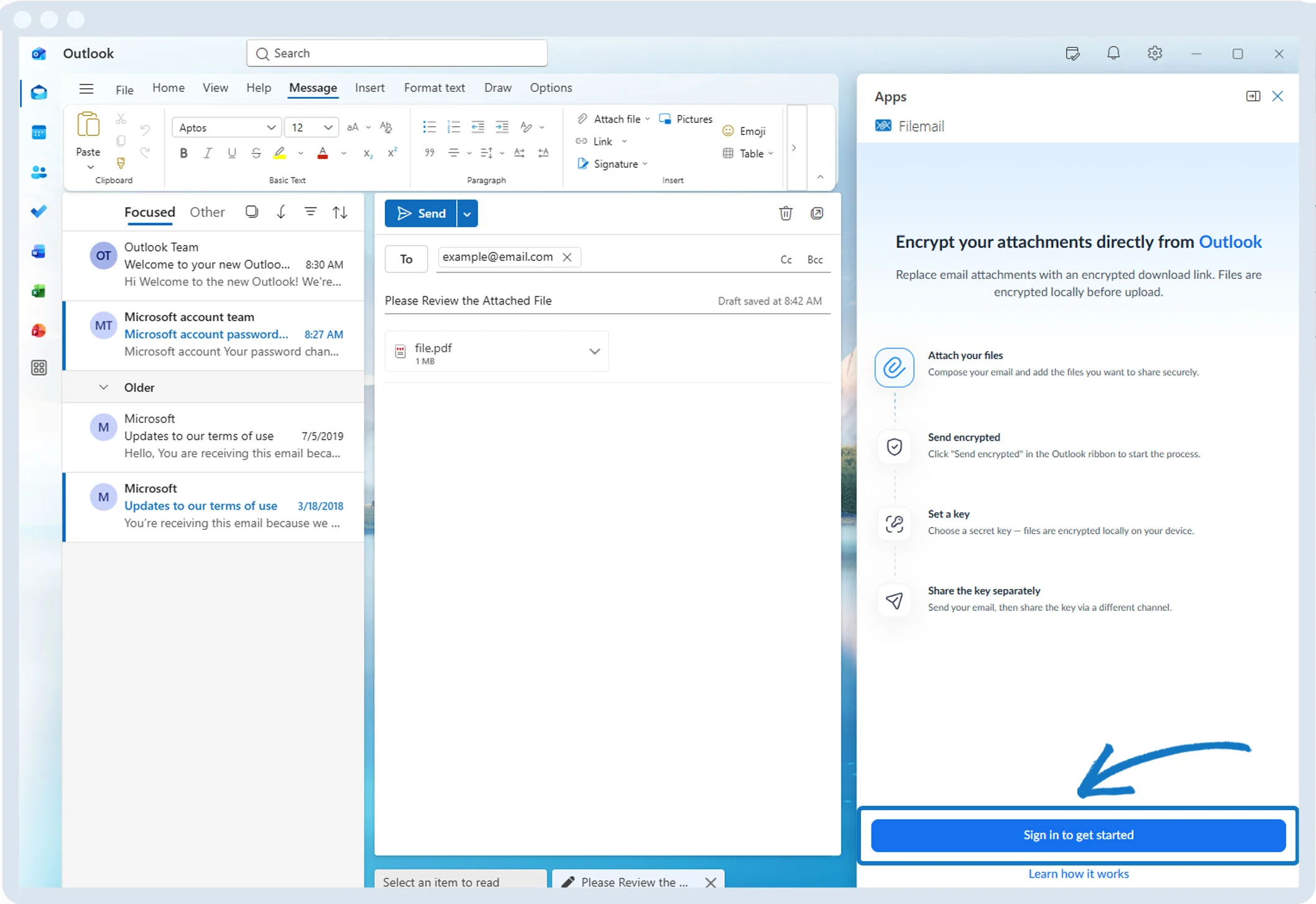
8. First-time users will need to sign in; click “Sign in to get started” and use your Filemail credentials.
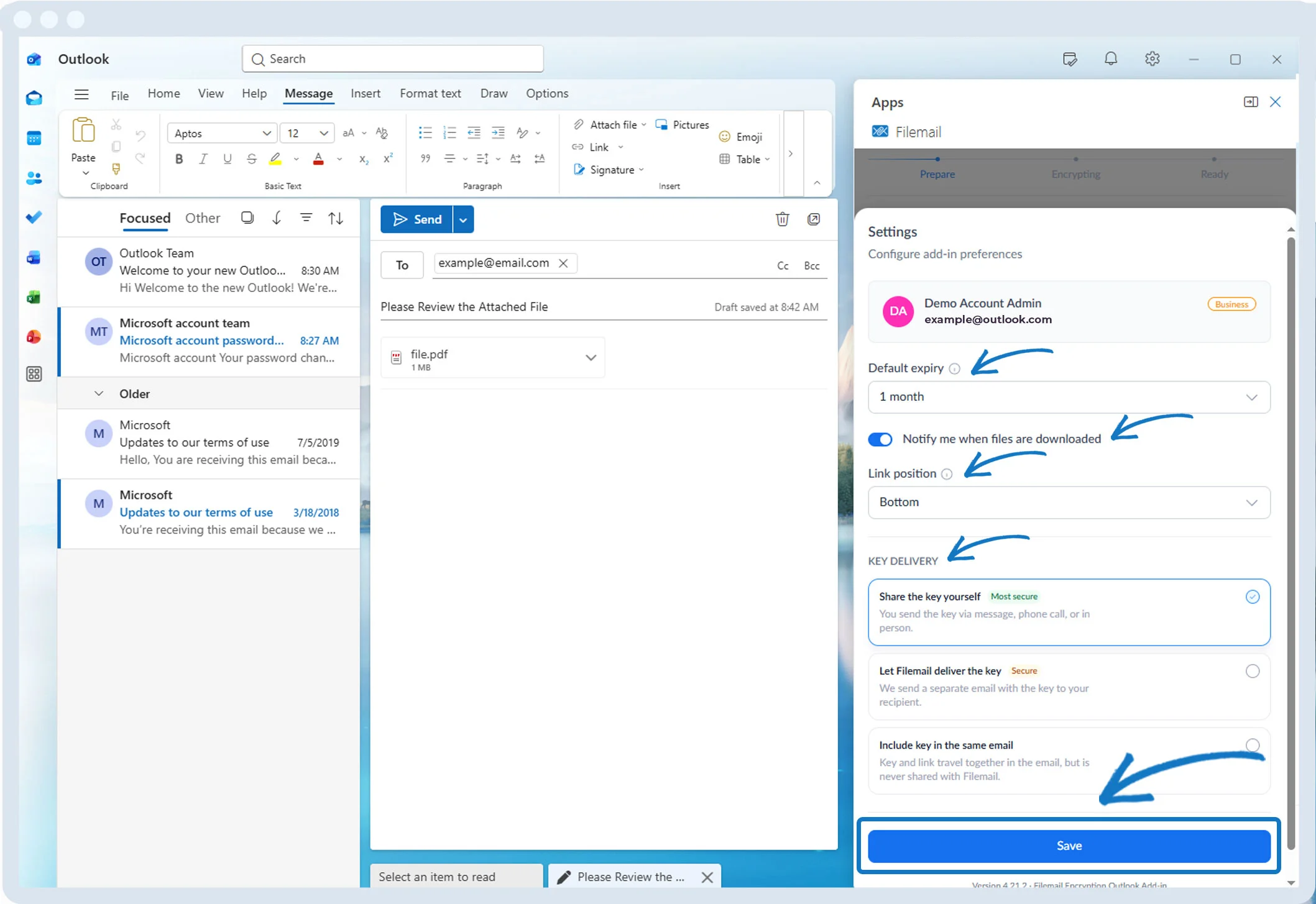
9. Tailor the settings to suit your workflow. Options are:
a. Default expiry, which defines the duration of file availability
b. An option to notify you when your files are downloaded
c. Link position: choose where you would like to place the download links. You can choose from current cursor position, or at the bottom of the email.
d. Key Delivery; 3 options to choose how the end-to-end encryption key is shared, you can choose from:
i) Share the key yourself
ii) Let Filemail delivery the key
iii) Include key in the same email
e. Save. Once you have configured your settings, click on Save. These preferences will be used for all future usages, so you don’t need to configure them again if you don’t want to.
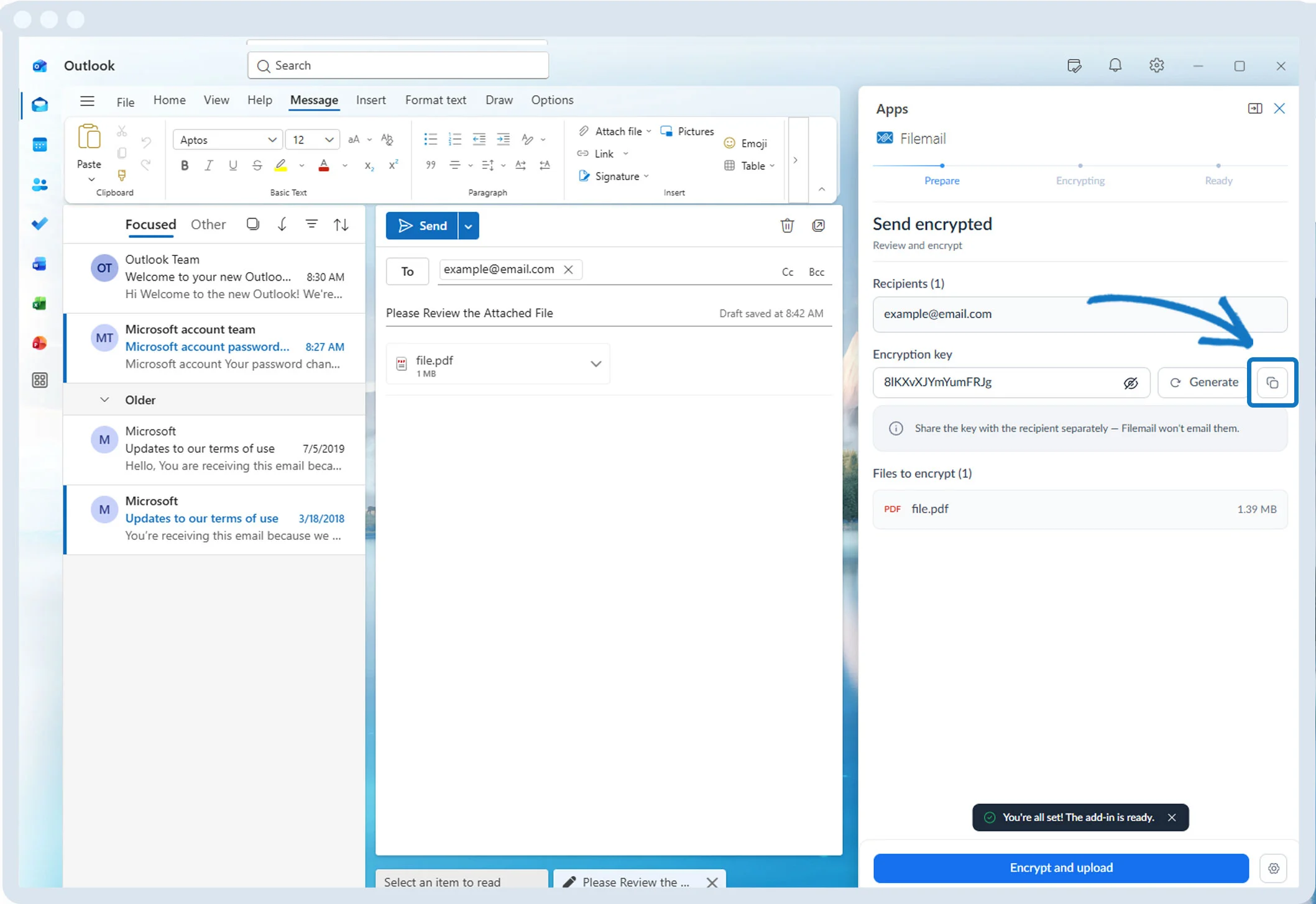
10. Enter an E2EE key or generate one

11. Click the Copy button to copy the E2EE key, if you will personally share the key
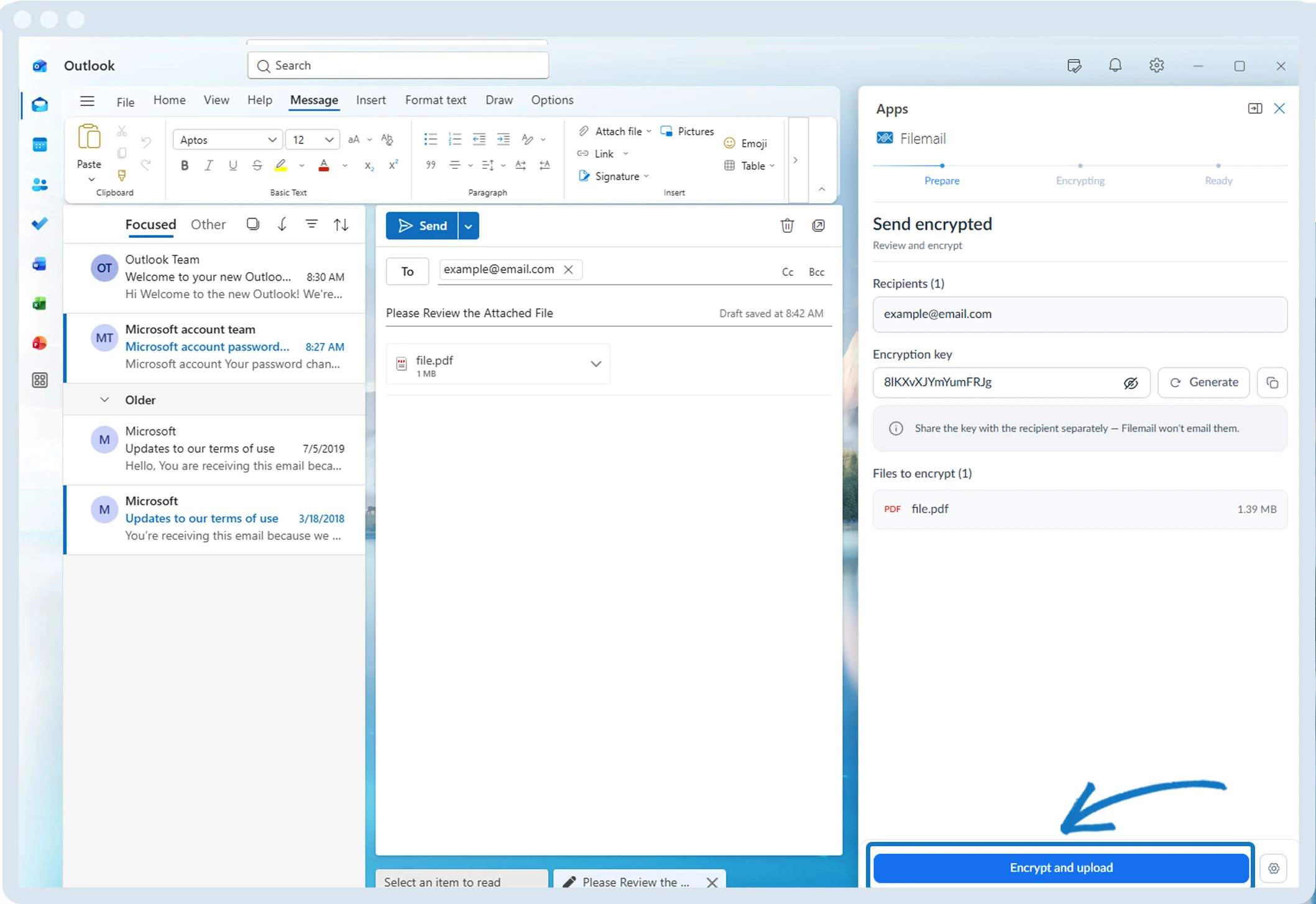
12. Click the Encrypt and upload button. Your files are encrypted on your device, and then uploaded to our secure severs.
13. Our add-in replaces the attachment with a secure download link
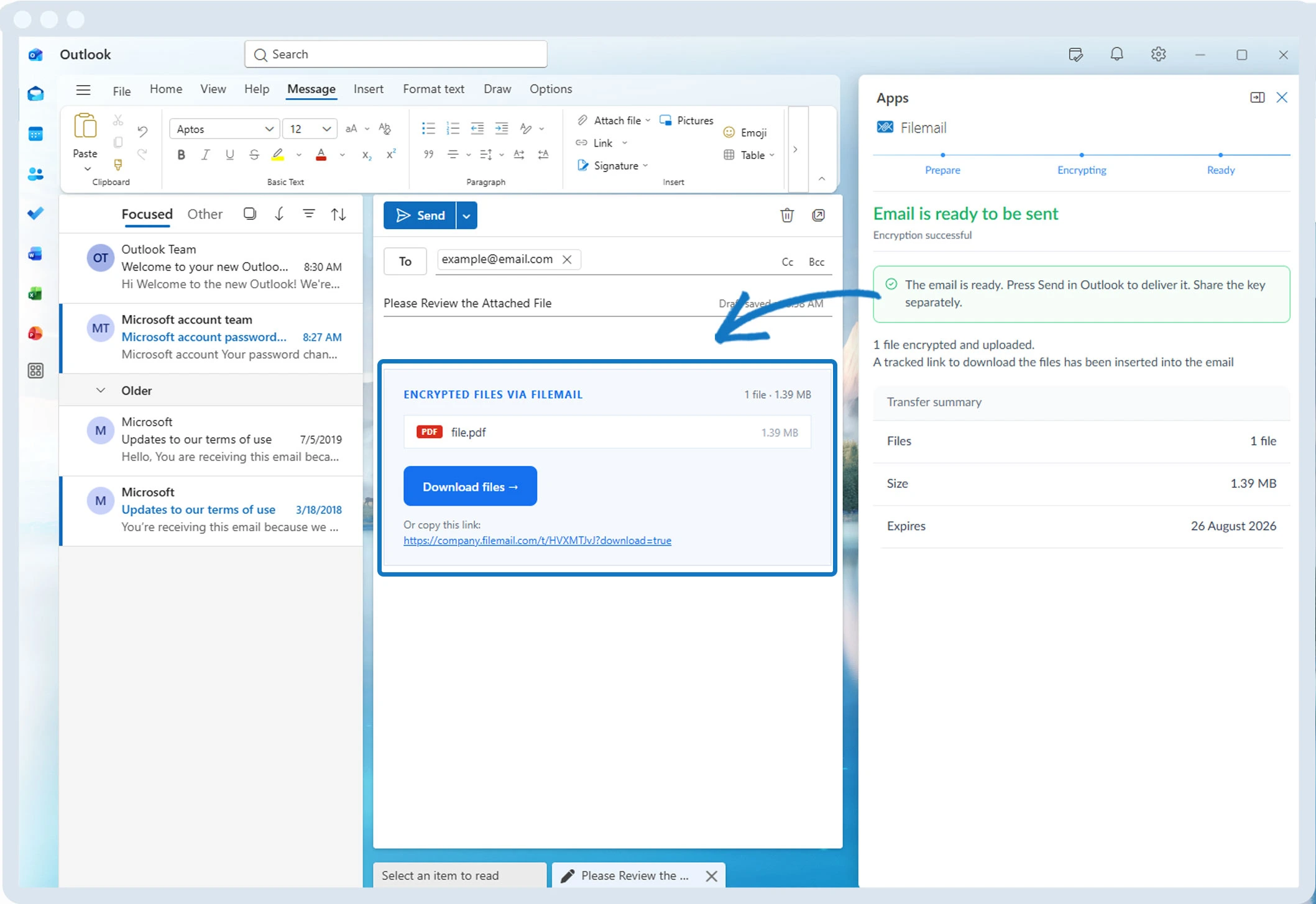
14. Click on Send to send the email