How to send encrypted files in Outlook
Learn 5 ways to send encrypted files in Outlook, protect attachments, and share files securely using Microsoft encryption, S/MIME, and Filemail.

How to Send Encrypted Files in Outlook (2026 Guide)
There are several ways to send encrypted files in Outlook, but they do not protect the same thing. Some protect the email and supported attachments. Others protect files during transit. Other methods encrypt the file itself, keeping it protected after delivery.
In this guide, we will cover five methods to send encrypted files in Outlook. These include:
- Microsoft's built-in encryption to protect an email message and supported attachments.
- S/MIME for certificate-based email encryption.
- Encrypting the file yourself before attaching it.
- Sharing files through OneDrive or SharePoint using controlled access links.
- Using Filemail’s Outlook add-in to send encrypted files without leaving Outlook.
If you are unsure which method to use, start with one question:
What do you need to protect: the email, the file itself, or the file-transfer workflow?
That answer determines which methods you should evaluate. Each comes with its own requirements and practical implications. Consider how recipients will open the file and how much your Outlook routine will change. Consider the file size and whether you need a one-time delivery or ongoing access and collaboration.
Security requirements determine which methods are acceptable. When more than one method satisfies those requirements, determine the better fit by assessing:
- Sender workflow
- Recipient friction
- File size
- Delivery needs
Quick Answer: Which Outlook Encryption Method Should You Use?
| Method | What it protects | Continue working in Outlook | Key / access handling | One-time file delivery | Getting up and running |
| Microsoft Purview Message Encryption | Email message and supported attachments, according to the protection applied. | Strong fit. Encrypt and send from Outlook with little change to the normal workflow. | Microsoft-managed access. Recipient experience depends on their email service and protection applied. | Good fit when protecting the email and supported attachments is the requirement. | Potentially straightforward when the required encryption options are already available in your Microsoft 365 environment. |
| S/MIME | Certificate-based encryption of the email and its attachments, with support for digital signatures. | Good once configured. Sending remains within Outlook. | Certificate-based. Sender and recipient need compatible certificates and software. | Good fit when you need certificate-based email encryption. | More involved. Both parties must obtain, install, configure, and manage the required certificates. |
| Encrypt the file before attaching it | The file itself, independently of Outlook. | Partial fit. You still send through Outlook, but encrypt the file before attaching it. | Sender-managed. You decide how to give the recipient the password or encryption key. | Strong fit when protection needs to remain with the individual file. | Little infrastructure, but more manual work. You may need to encrypt the file and share the key each time. |
| OneDrive or SharePoint | Files stored with Microsoft encryption and shared through links with access controls. | Good fit. Share the file link through Outlook. | Permission-based access. You control access to the shared resource. | Weaker fit for purely one-time delivery; better suited to persistent access and collaboration. | Setup may be straightforward if your organization already uses Microsoft 365. You still need to configure sharing permissions correctly. |
| Filemail for Outlook | Files encrypted on your device before upload, with encryption maintained during storage and download. | Strong fit. Continue composing and sending from Outlook while Filemail handles the file transfer. | Flexible key delivery. Share the key yourself, have Filemail send it separately, or include it with the download link. | Strong fit for one-time encrypted file delivery rather than persistent collaboration. | Straightforward add-in setup. Once installed and signed in, attach files in Outlook and click Encrypt & Upload. Outlook must first accept the attachment. |
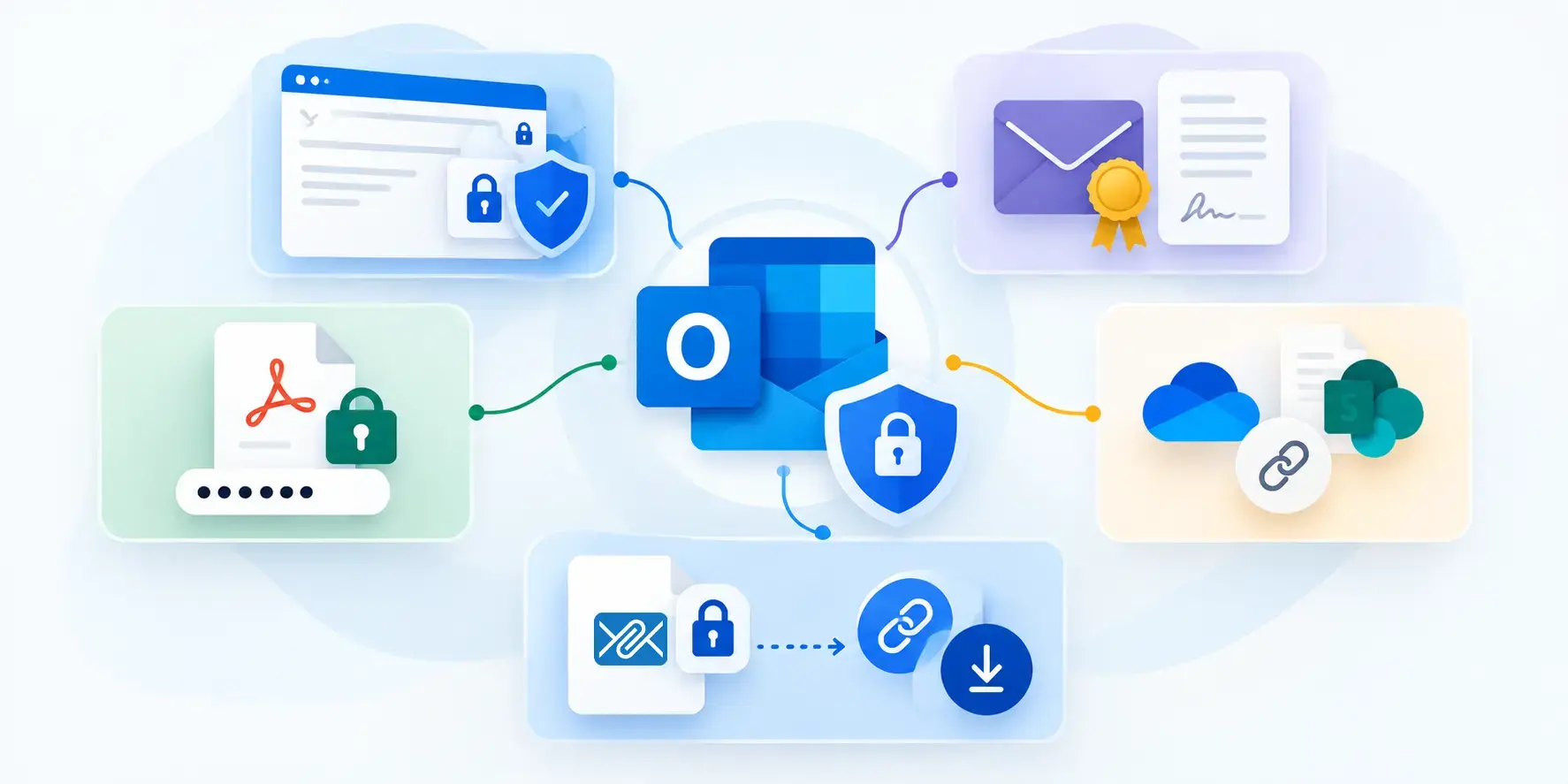
Filemail for Outlook is a stronger fit for when you want to send encrypted files and continue working within Outlook. The add-in is straightforward to get up and running, and once installed, you can continue composing your email and attaching files from Outlook.
Filemail:
- Encrypts and uploads the files,
- Replaces the conventional attachments with a download link,
- Gives you options for how the recipient receives the encryption key.
What Does “Sending an Encrypted File in Outlook” Actually Mean?
“Encrypted” can mean several different things in relation to Outlook:
- Encrypted during transit
- Email message encryption
- Attachments encrypted
That's why instructions for how to send encrypted attachments in Outlook can become confusing. One guide may describe an encrypted email. Another may mean an encrypted file.
These methods are not the same because they protect different parts of the workflow.
Encryption in transit
Outlook.com can use Transport Layer Security (TLS) when communicating with the recipient's email service.
TLS protects data while it travels between systems. However, Microsoft distinguishes transport encryption from message encryption. TLS protects data in transit. It does not provide encryption that persists after delivery.
Outlook message encryption
Microsoft Purview Message Encryption protects email messages. Recipients open these encrypted messages according to the protection applied. Depending on your Microsoft 365 environment, you may see encryption options such as Encrypt or Do Not Forward. Do not rely on a lock icon alone to confirm what protection applies; check the selected encryption option.
Attachment behavior can vary.
With Microsoft's consumer Encrypt option, Outlook.com and Microsoft 365 recipients can download attachments without encryption. With Do Not Forward, supported Microsoft Office files remain encrypted after download. Recipients can download other files, such as PDFs and images, without that continuing protection.
Enterprise Microsoft Purview environments can have additional policy and file-type considerations.
An encrypted email does not always include a file that remains encrypted after you download it.
File-level encryption
You can encrypt the actual file before attaching it to an Outlook email. For example, you might use an encrypted archive or an appropriate password-protection feature within the file format.
The protection then belongs to the file rather than the Outlook message. You can protect files outside the email system by encrypting them yourself or using an encrypted file-transfer service.
However, it creates another requirement: the recipient needs the password or key. How you share that secret is therefore part of the security decision.
S/MIME encryption
S/MIME stands for Secure/Multipurpose Internet Mail Extensions. It is a widely accepted standard for encrypting emails and adding digital signatures to verify the sender’s identity.
S/MIME uses digital certificates to enable encryption. A certificate contains a public key that others can use to encrypt messages intended for its owner. The owner has a corresponding private key, which they use to decrypt those messages.
To send an S/MIME encrypted email, you need access to the recipient's public-key certificate. Outlook uses the public key to encrypt the message, and the recipient uses their private key to decrypt it.
Both parties need an email application that supports S/MIME and must configure the required certificates. Microsoft's S/MIME setup guidance explains the configuration requirements. S/MIME also supports digital signatures, which recipients can use to verify the sender's identity.
Unlike S/MIME, Outlook's standard Encrypt option does not require users to exchange S/MIME certificates.
End-to-end encryption
An encrypted email is not necessarily end-to-end encrypted (E2EE).
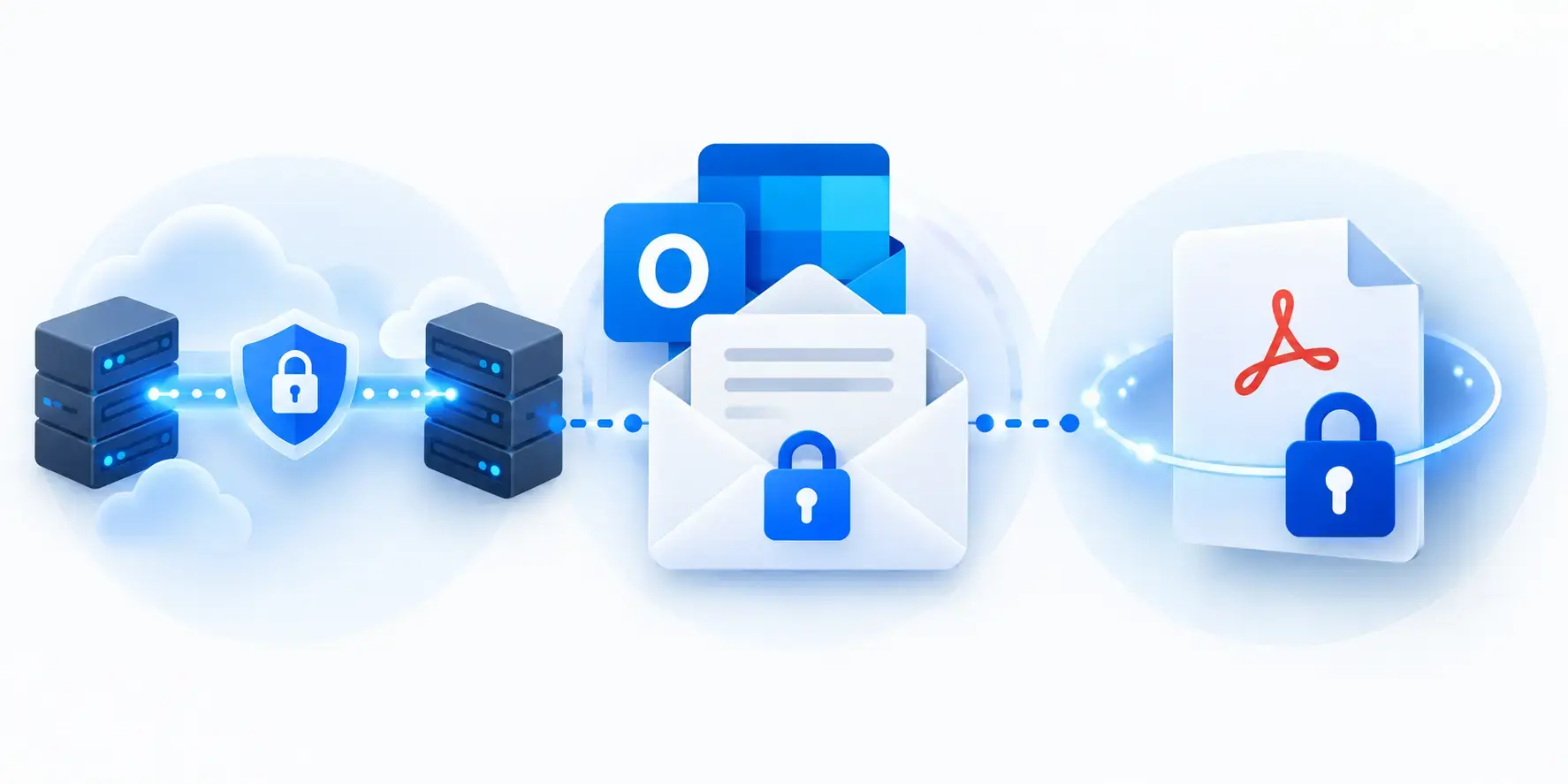
For example, Transport Layer Security (TLS) encrypts data while it travels between systems. However, those systems may be email servers rather than the sender's and recipient's devices. Each server can decrypt the data at the end of its TLS connection. TLS alone does not prevent email providers from accessing the message or its attachments.
E2EE works differently. The file is encrypted on the sender's device and decrypted by the recipient. Intermediate services cannot decrypt it because they do not have access to the decryption key.
To assess whether a file-transfer method provides E2EE, ask four questions:
- Where is the file encrypted?
- Where is it decrypted?
- How is the decryption key shared?
- Can anyone other than the sender and intended recipient access the decryption key?
E2EE protects the file during transfer and while the service provider stores it. However, once the recipient decrypts and downloads the file, it may be saved without encryption. E2EE does not automatically protect that downloaded copy.
For example, Filemail states that its Outlook E2EE process encrypts files on the sender's device with AES-256 before upload. The recipient needs the encryption key to access those files.
Secure and access-controlled links
A link is a delivery method. It does not, by itself, tell you which encryption model protects the file.
OneDrive and SharePoint can use links to provide controlled access to files. A dedicated encrypted file-transfer service can also use a link to deliver a file.
The links may look similar inside an email message, but the workflows solve different problems.
When recipients need persistent access or collaboration, controlled cloud sharing fits that workflow. When the requirement is one-time encrypted delivery, a file-transfer workflow may be more appropriate.
How Do Encryption Methods Affect Your Outlook Workflow and File Access?
For many people, sending an attachment is second nature:
Address → compose → attach → send.
Different encryption methods introduce different requirements. Some need initial configuration, while others change how you send files or how recipients access them.
Initial setup requirements
Before using an encryption method, you may need to meet certain technical or administrative requirements. These may be necessary, but are typically one-time procedures.
- S/MIME requires digital certificates and configuration.
- Microsoft Purview Message Encryption depends on the available Microsoft 365 environment, licensing, and applicable policies.
- Outlook add-ins require installation and may need administrator deployment in managed organizations.
Everyday sending requirements
Once you finish setup, the steps to send a message with an encrypted file depend on your email security method.
- Microsoft Purview Message Encryption: Compose your email, attach the file, select the appropriate encryption option in Outlook, and send. The recipient's experience depends on their email service and the protection applied.
- S/MIME: Compose your email, attach the file, enable S/MIME encryption, and send. Outlook encrypts the message using the recipient's public key, which you must have available.
- Manual file encryption: Encrypt the file before attaching it to your email. If you protect it with a password, you must also communicate that password securely to the recipient.
- OneDrive or SharePoint: Upload or select the file, and set access permissions. Add a sharing link in your Outlook email, instead of attaching the file.
Filemail for Outlook: Compose your email and attach files as usual, then click Encrypt & Upload in the add-in. Filemail encrypts and uploads the files, replaces the attachments with a download link, and lets you send the email from Outlook.
Recipient access
The method you choose also determines what the recipient must do to access the file.
- Microsoft Purview Message Encryption: Supported Outlook and Microsoft 365 recipients can often open protected messages directly. People using another email service may receive an email with instructions. They can then use a web app to open the protected message. They may also need a one-time passcode or another way to sign in.
- S/MIME: The recipient needs an S/MIME-compatible email application and the correct private key to decrypt the message. A third-party email app must also support S/MIME and the required certificates.
- Manual file encryption: The recipient downloads the attachment and decrypts it using the appropriate software and password or key.
- OneDrive or SharePoint: The recipient opens the sharing link in a web page. Depending on the permissions you set, they may need to sign in. They may also need to verify their identity before accessing the file.
- Filemail for Outlook: The recipient clicks the download link. They use the decryption key sent via the chosen key delivery method.
When several methods meet your security needs, compare the steps you repeat to send files. Also compare the steps recipients must follow to access them.
Handling exceptions
Finally, consider what happens when a file cannot be sent through the usual process.
A method may work smoothly while Outlook accepts the attachment. However, if Outlook rejects a file because it is, for example, too large, the add-in cannot detect it. As a result, it cannot process the file through its normal workflow.
In that situation, you may need another way to transfer the file.
A method that works well for everyday attachments may be less convenient for larger files. Evaluate both the normal sending process and how the method handles files that fall outside it.
Method 1: Use Microsoft Encryption in Outlook
If your Microsoft environment supports it, native encryption can protect the email message and supported attachments.
Microsoft currently supports both S/MIME and Microsoft Purview Message Encryption in Outlook. Availability depends on your account and environment.
In new Outlook for Windows, Microsoft documents the Purview process as:
- Compose a new email.
- Select Options.
- Select Encrypt.
- Choose the protection you want, such as Encrypt or Do Not Forward.
- Finish the message and select Send.
The process keeps you inside the normal Outlook compose window.
Check what happens to the attachment after delivery. Protection can vary by encryption option, file type, account type, and Microsoft 365 configuration.
Choose Microsoft encryption if your Microsoft 365 environment supports the protection you need. You can secure email messages and compatible attachments without leaving Outlook.
Consider another method when: the file needs its own encryption or your Microsoft setup cannot meet your security requirements.
Method 2: Use S/MIME in Outlook
S/MIME is a good choice when you need certificate-based encryption. It also supports digital signatures to verify the sender's identity. It will only work when both parties can support the required certificate setup.
Before you can use it, you need the relevant digital certificate. Microsoft notes that new Outlook does not automatically import digital certificates. You must install the certificate yourself or have an administrator configure the relevant policy.
For external recipients, Microsoft says you must install the recipient's certificate locally before sending an S/MIME-encrypted email.
Once the certificates are in place, S/MIME can become part of the Outlook workflow.
The main disruption comes from certificate setup and management, while recipient compatibility adds another constraint.
In new Outlook, you can encrypt a single message with S/MIME. You can also configure S/MIME for outgoing messages more broadly. You can also add a digital signature to verify sender identity.
Consider another method when: the recipient cannot use certificates or you need to encrypt or deliver the file itself.
Method 3: Encrypt the File Before Attaching It
When the file itself needs to carry the protection, encrypt it before attaching it to Outlook. Note that file-level encryption also does not remove Outlook's attachment limits.
The basic workflow is:
- Encrypt or password-protect the file.
- Attach the protected file to your Outlook email.
- Send the email.
- Give the recipient the password or key through an appropriate channel.
This approach separates file protection from the email service. However, it adds extra steps each time you send a file.
The recipient must know how to open the protected file, and you need a suitable way to exchange the password or key.
If the encrypted file and its key arrive in the same email, anyone with access to that email may get both. If that separation matters to your security model, use an appropriate independent channel for the password or key.
Use file-level encryption when the file needs protection outside Outlook and you can share the key securely.
Consider another method when encrypting files and sharing keys each time is too much work, or the file is too large to attach.
Method 4: Share the File Through OneDrive or SharePoint
In some cases, there’s no need to “send” the file.
You need to give someone controlled access to it.
Use a OneDrive or SharePoint link if recipients need ongoing access, shared editing, or controlled permissions. You may not need to send another attachment.
Recipients can access the shared resource instead of receiving separate copies.
That makes the model particularly suited to:
- ongoing collaboration;
- persistent access;
- shared editing;
- organizational storage;
- permission management.
But a link with access controls is not necessarily the same as an end-to-end encrypted transfer. They solve different problems.
Consider another method when: the requirement is primarily to deliver an encrypted file rather than maintain a shared resource.
Method 5: Send End-to-End Encrypted Files Through Outlook With Filemail
Another option is the Filemail for Outlook add-in. It lets you keep using Outlook without sending files as normal email attachments.
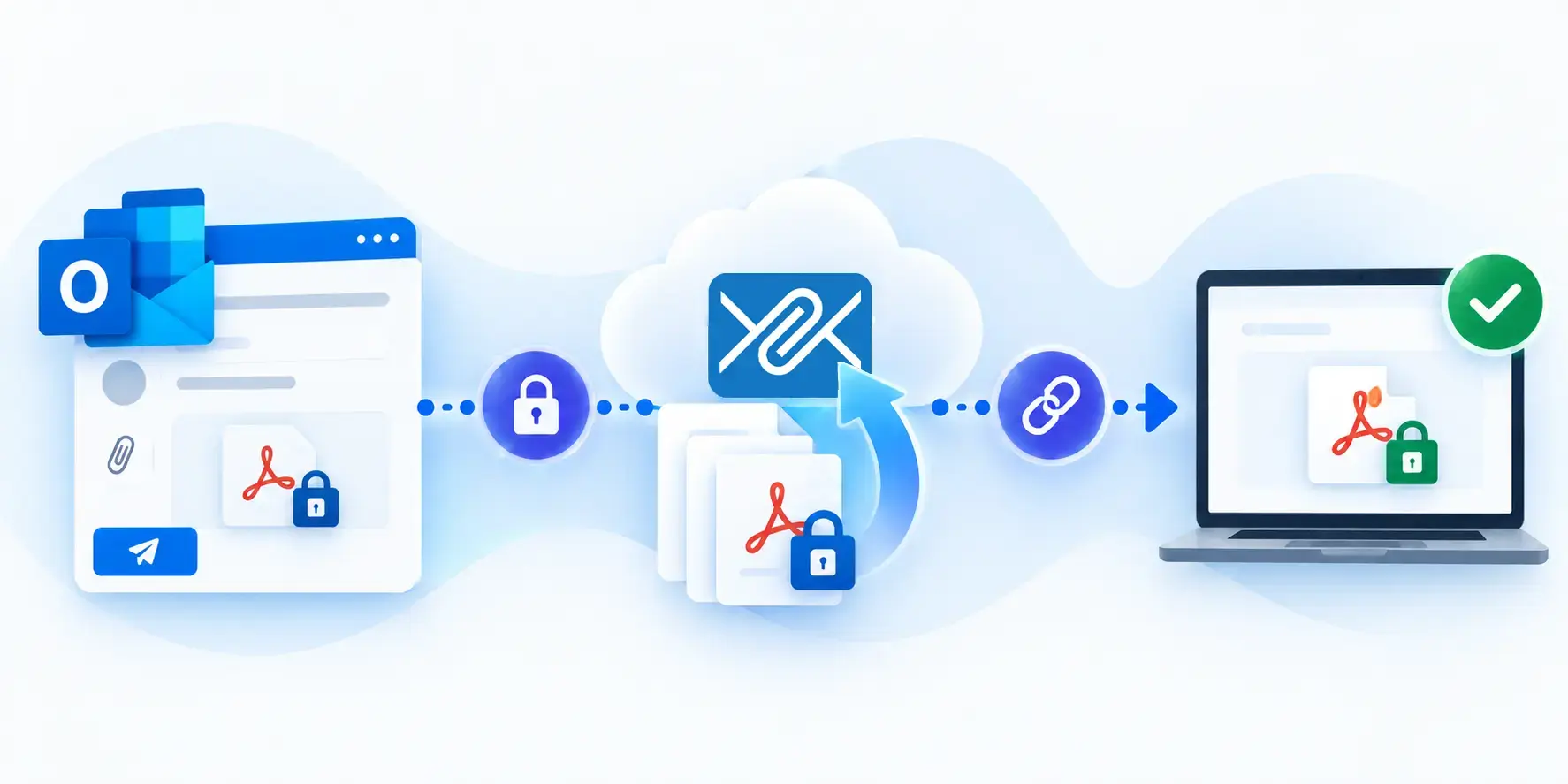
Filemail adds just one step to your established workflow. Compose your email and attach files as you normally would. Then click Encrypt & Upload in the Filemail add-in. Filemail encrypts and uploads your files, replaces the attachments with a download link, and lets you send the email from Outlook.
Getting started with the Filemail add-in
Install the Filemail Outlook add-in and sign in before your first transfer. You do not need to start each transfer in another service.
How does Filemail's Outlook E2EE work?
The Filemail Outlook add-in encrypts files on your device with AES-256 before upload. It also uses HTTPS and TLS 1.2 to protect the transfer to Filemail's servers.
The files remain encrypted during transfer, while stored on Filemail's servers, and after download. They cannot be opened without the decryption key.
What changes for the recipient?
The recipient receives the email in their usual inbox and does not need a Filemail account. However, they need the decryption key to open the files.
Filemail currently offers three ways to deliver that key:
- Share it yourself: Send the key through a separate trusted channel.
- Let Filemail send it separately: Filemail sends the key in another email.
- Include it in the same email: The recipient gets the key and download link together.
For greater control over who receives the key, use the first option and share it through a separate trusted channel.
What are the Filemail Outlook add-in's limits?
The Filemail add-in needs Outlook to accept the file as an attachment before the add-in can detect it.
If Outlook refuses the file because it exceeds Outlook's attachment limit, the Filemail add-in cannot process it. Use the Filemail Desktop app or Filemail website instead. Both support end-to-end encryption of larger files.
That is a hard boundary of the Outlook add-in workflow, not of Filemail's broader file-transfer service.
Use Filemail for Outlook when you need encrypted file delivery and want to keep sending emails in Outlook.
Consider another method when Microsoft encryption already meets your needs or your organization requires S/MIME.
Which Outlook Encryption Method Should You Use?
Choose the method according to the protection and workflow you actually require.
Use Microsoft/Outlook encryption when Microsoft-managed protection meets the requirement for the email and supported attachments.
Use S/MIME when you need certificates, digital identity, or a digital signature. Both parties must support the certificate setup.
Encrypt the file itself if it needs protection outside Outlook. Make sure you can share the key securely.
Use OneDrive or SharePoint for ongoing access, permissions, and collaboration rather than one-time delivery.
Use Filemail for Outlook if its encrypted delivery meets your needs and you want to keep sending from Outlook. If Outlook rejects the attachment as too large, use the Filemail Desktop app or website instead.
Compare protection needs, the security model, your sending steps, recipient access, and delivery limits before choosing.
Security vs Convenience
Security requirements determine which methods are acceptable; workflow disruption helps you choose between methods that already satisfy those requirements.
If your organization requires S/MIME, certificate management is part of meeting that requirement. If the file must carry independent protection, the extra encryption and key-sharing steps may also be necessary.
When several methods satisfy the same security requirement, compare their operational impact.
Ask:
- What do I need to set up?
- How long will it take to set up?
- How complicated is it?
- Do I need additional support?
- What changes every time I send a file?
- Do I need to encrypt, upload, create a link, or share a password?
- What does the recipient need to do?
- Can they open the message directly, or will they receive an email that sends them through another access step?
- What happens when the normal process fails?
- Will file size, recipient software, or attachment behavior force me into another workflow?
For something as habitual as email, choose the least disruptive workflow that fully satisfies the security requirements.
Checklist: Before You Send Encrypted Files in Outlook
- Decide what needs protection. Determine whether the security requirement applies to the email, the file itself, or the transfer.
- Define the required security model. Identify whether you need Microsoft message encryption, S/MIME, independent file encryption, E2EE, or another specific model.
- Check the recipient's requirements. Confirm whether the recipient needs a certificate, password, encryption key, account, browser, or one-time passcode.
- Check the file and Outlook limits. Confirm that Outlook can handle the file through the workflow you intend to use. If it cannot, choose a delivery path that does not depend on that attachment workflow.
- Decide whether you need delivery or collaboration. If people need to keep editing or accessing the file, choose a collaboration tool instead of one-time delivery.
- Check your sending steps. Consider initial setup, the steps required for every send, and what happens when the normal process encounters an exception.
- Choose the method that satisfies the complete requirement. Security determines the acceptable methods. Workflow determines which acceptable method fits the job.
Frequently Asked Questions
Does Outlook automatically encrypt attachments?
Outlook can use TLS to protect the connection between email systems, but Microsoft distinguishes TLS from message encryption.
Stronger protection depends on the encryption method, Microsoft 365 environment, policy, file type, and encryption option.
An encrypted connection does not mean the file stays encrypted after delivery.
Does Outlook's Encrypt option encrypt attached files?
It can protect attachments within an encrypted email. Whether that protection continues after download depends on the setting and file type.
For Microsoft 365 Personal and Family accounts, Microsoft distinguishes between Encrypt and Do Not Forward. Supported Microsoft Office attachments can remain encrypted after download with Do Not Forward. Other file types, such as PDFs and images, may not.
If the downloaded file must stay encrypted, check how Outlook protects that file. Do not assume message encryption is enough.
Is an encrypted Outlook email the same as an encrypted attachment?
No.
An encrypted Outlook message protects the email through the relevant email encryption system. An independently encrypted attachment carries protection with the file itself.
Some email encryption systems also protect attachments. But message encryption and file-level encryption are not the same.
Can I send encrypted emails in Outlook to someone outside my organization?
Yes, depending on the method and the recipient's access requirements.
Microsoft Purview Message Encryption supports external recipients. Their experience can vary according to the email service or application they use. Microsoft notes that if you use another mail service, you'll receive instructions for accessing the protected message.
S/MIME can also work across organizations, but both sides need the required certificate setup. For an external S/MIME recipient, Microsoft says the sender must have that recipient's certificate installed locally.
External recipients can also use encrypted files or file transfers. They must have the required keys or access permissions.
For external recipients, choose the encryption method only after confirming that the recipient can satisfy its authentication, certificate, password, or key requirements.
How do I password-protect a file before sending it through Outlook?
Open the Word or Excel file in Microsoft Office. Go to File → Info → Protect Document (or Protect Workbook) → Encrypt with Password. Enter a password, confirm it, and save the file.
For other file types, you can use a tool such as 7-Zip to create a password-protected, encrypted archive.
Once the file is encrypted, attach it to your Outlook email and send it. Share the password with the recipient through a separate trusted channel, such as a phone call or secure messaging app.